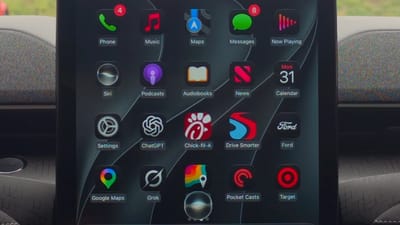
Using these little-known Apple CarPlay hacks will completely transform your driving experience with it
Published on Apr 30, 2026 at 10:21 AM (UTC-4)
by Ben Thompson
Last updated on May 19, 2026 at 2:24 AM (UTC-4)
Edited by
Mason Jones
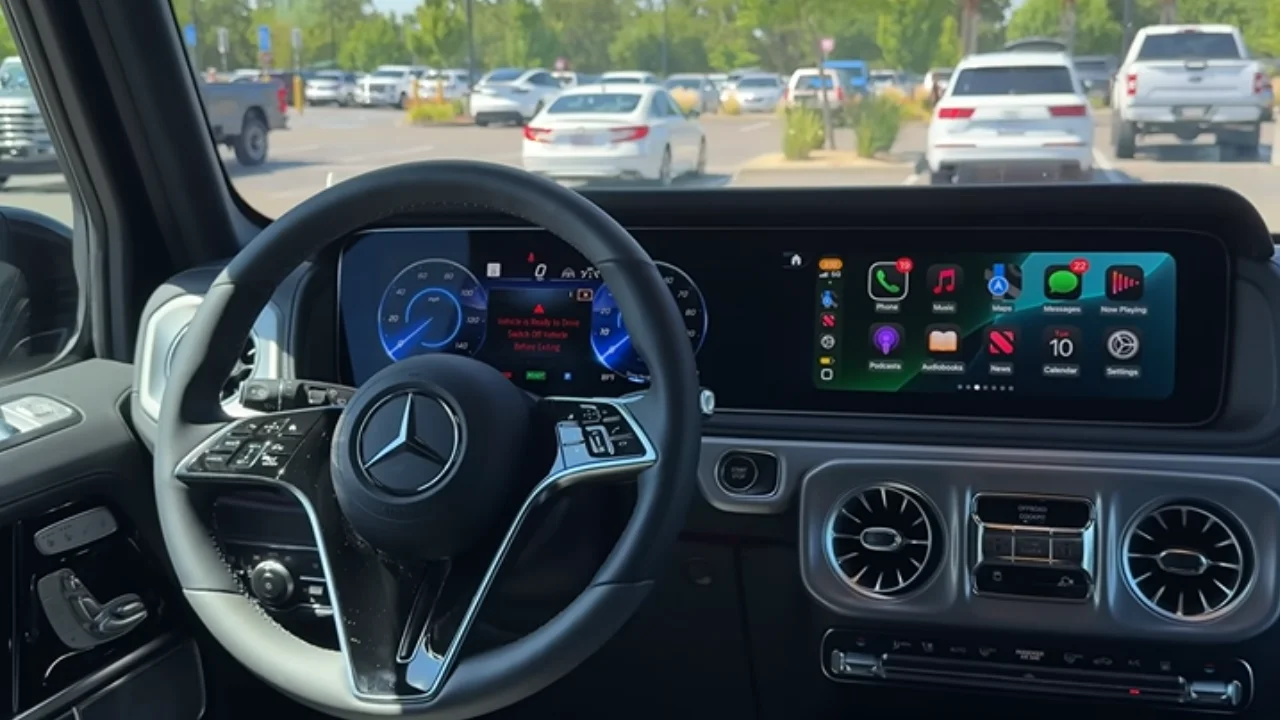

If you want to elevate your driving experience, use these little-known Apple CarPlay hacks.
For many drivers, their Apple CarPlay is an indispensable part of their day-to-day life.
But there are plenty of features that fly under the radar.
These hacks will take your time on the road to another level.
The Apple CarPlay hacks that you need to know about
There’s been a lot said about Apple CarPlay over the years, whether it’s voice commands or new features included in iOS updates.
We’d like to think we know our way around it without any additional guidance.
But there’s always room to grow and learn, right?
Jake Peterson, the senior tech editor at LifeHacker, compiled a list of hidden hacks that you need to know about.
Related



Customizing the home screen
If you’ve ever gotten frustrated with a clustered home screen, this first one is for you.
To rearrange your screen, simply go to Settings, click into your CarPlay section and then locate Apps.
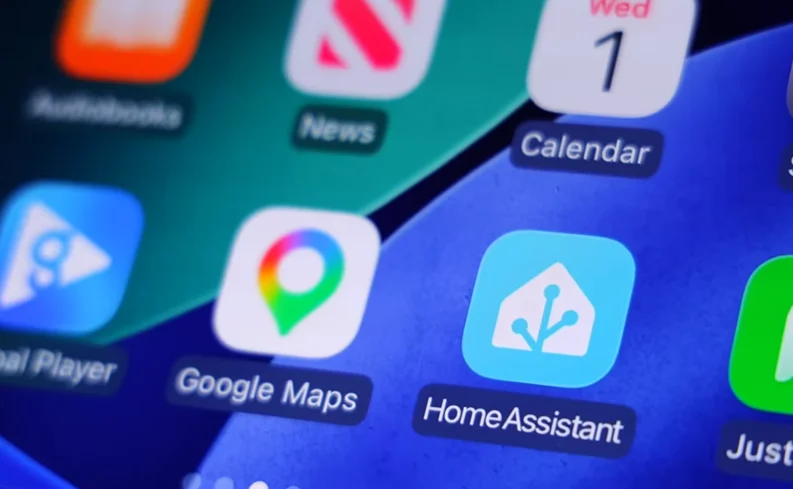
From there, you’ll be able to drag and drop icons as necessary.
Managing notifications through Apple CarPlay
If you’ve ever seen a message come through on the screen, you’ll know how annoying that feeling is.
After all, the instinctive response is to want to reply – but doing so while driving isn’t advisable.
So by enabling ‘Announce Notifications’, you can have Siri read incoming messages from apps like Messages or WhatsApp.
To activate this, head into Settings, Notifications, Announce Notifications, and CarPlay.
Stopping music from auto-playing
When music starts blaring out when you plug your phone in, that can be irritating and disorienting.
To keep this at bay, head to the Shortcuts app and click on the Automation tab.
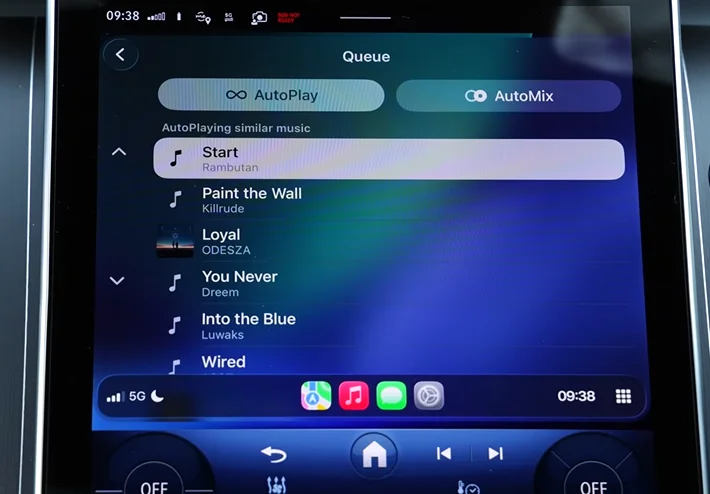
From there, tap New Ambition, CarPlay, and select ‘Is Connected’ and ‘Run Immediately’.
Once that’s done, tap Create New Shortcut, locate the Play/Pause button, and select Pause.
Make sure to hit the check mark too to save it.
Adding iPhone Widgets
If you ever wanted to check afloat of the weather or your calendar, you can add the widgets from your iPhone onto your car display screen.
To do this, go to CarPlay in your settings and select Widgets to add or rearrange items.
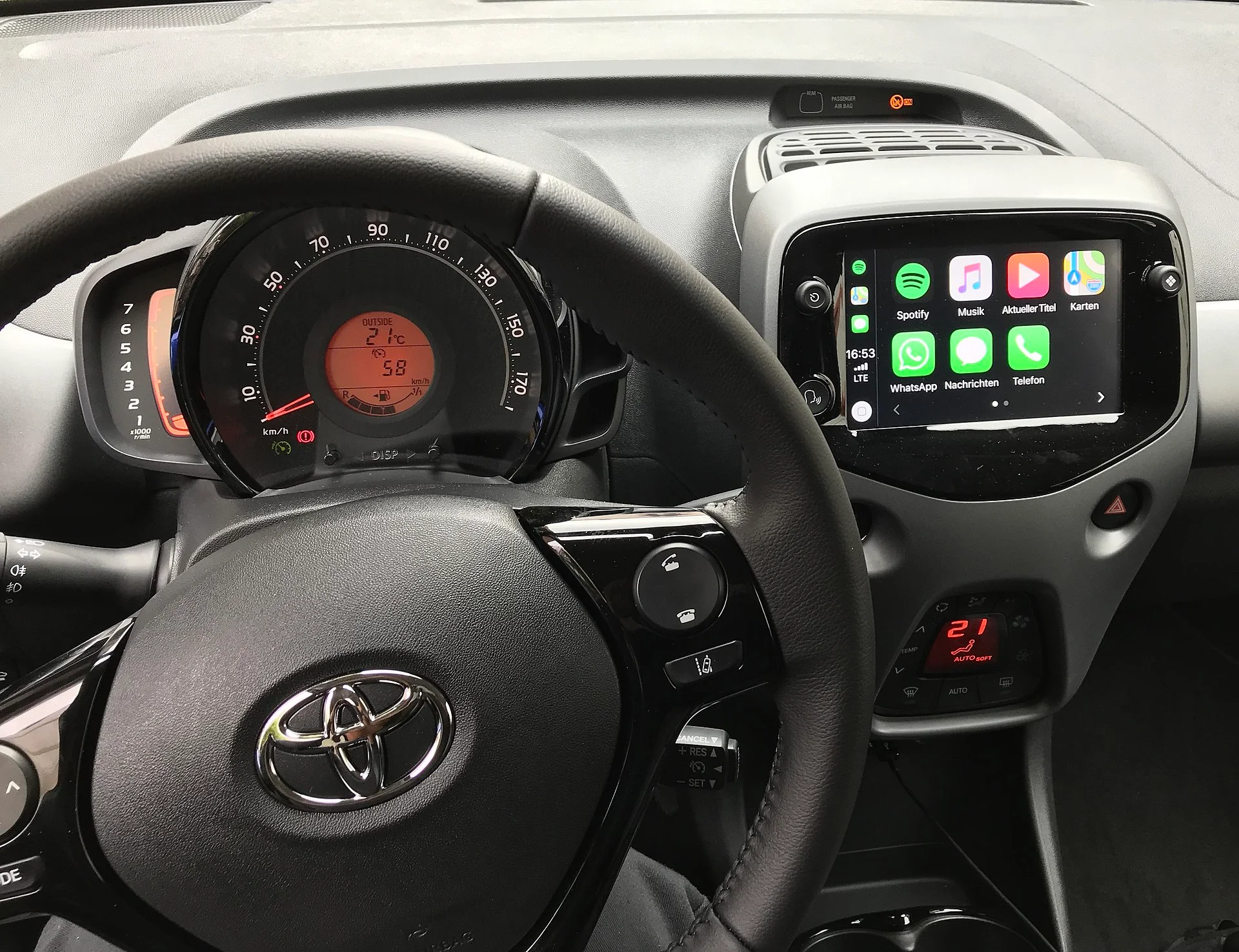
What to do if you want Hands-Free Voice Control
If you felt like basic Siri wasn’t cutting it for you anymore, you’re in luck.
Voice Control for more complex navigation of the interface can be enabled under the Accessibility tap in Settings.
We know what you’re thinking…it does get annoying when it randomly picks up on something you’re saying and starts talking.
Fear not.
Simply say ‘Stop listening’ to deactivate the Voice Control, and ‘Start listening’ to reactivate it.
As easy as pie.
Want to share DJ duties? This is the feature for you
When you’re driving and trying to manage the car’s music, that can feel like a lot.
As the saying goes, ‘If you want to wear two hats, you’ve got to grow an extra head’.
But this feature allows other car occupants to contribute to the car’s soundtrack.
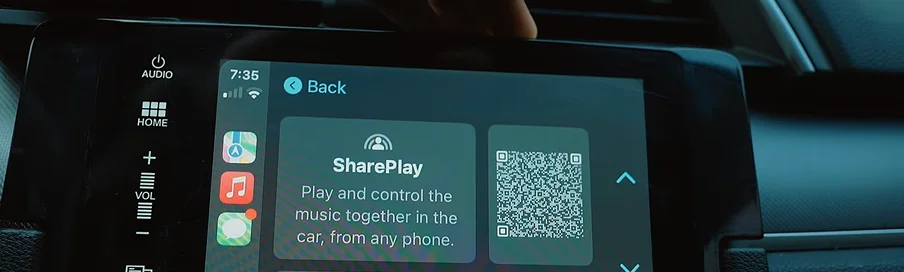
If you’re on Apple Music, tap Now Playing in CarPlay and press the SharePlay icon.
From there, others can scan the QR code and request to join.
If Spotify is more your jam, tap the device icon and click Start a Jam.
You can invite collaborators with the QR code.
Setting up custom greetings on Apple CarPlay
If you ever felt like you wanted a greeting when CarPlay starts up, you’re not alone.
It’s nice to have someone give you a positive affirmation at the start of the day – even if it is your car.
Alternatively, you could have a certain song play out.
To enable this, go into Shortcuts and go through Automations to find New Automation.
From there, tap CarPlay, select Is Connected, Run Immediately, and Next.
After that, click Create New Shortcut, and open up File.
In the Files folder, choose your saved audio of choice and click Play Sound, adding the action underneath the file.
Wire or wireless? That is the question
There are certain advantages that can come with using a wire for CarPlay.
But anyone who has had a wire that’s not playing ball can know how frustrating it can be.
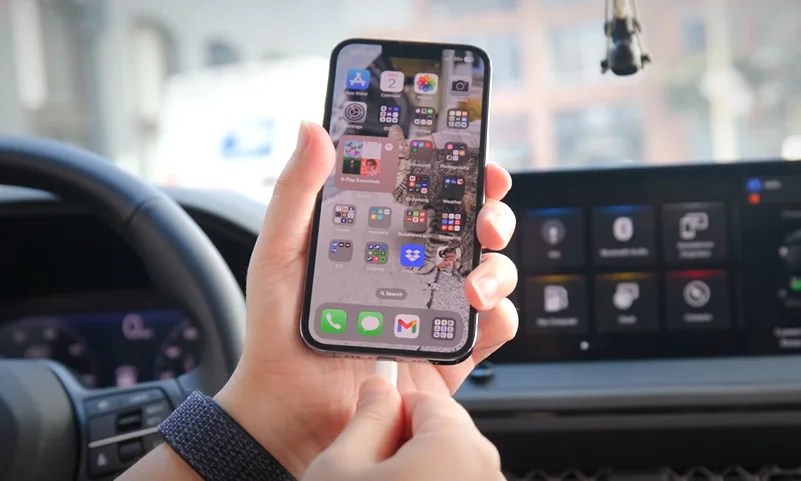
So if that bugs you, a wireless CarPlay adapter is the way to go.
Some recommendations put forth by Peterson included AAWireless TWO+, and Ottocast Mini Pico.
Want to stay focused? Apple CarPlay can help you out there
Sometimes the sounds of notifications blasting through is enough to drive you to distraction – literally.
To silence those sounds, click Driving Focus on CarPlay.
Here, you can choose select contacts that you want to silence notifications from.
You can even set up an auto-reply which lets people know you’re driving, to avoid you catching any ghosting allegations.
Keeping your favorite playlists close at hand
In life, there are two types of people – those who make playlists and those who don’t.
If you fall into the former camp, you likely have more playlists than you know what to do with.
But if you want to keep particular playlists close at hand, here’s what you need to know.
Open up the Music app on your phone, hold on a playlist, and tap Pin in the pop-up menu that follows.
Once it’s pinned to your library, you can determine what happens to it when clicked, whether that’s shuffling the songs or playing in a default order.
Pretty handy, right?
Ben joined Supercar Blondie in February 2025 after being published by international organizations including LADbible, The Sun, the New York Post, and the Daily Mail. He covers supercars, rare and collectible vehicles, aviation, luxury assets, and the fascinating people behind them. His reporting has explored everything from seven-figure supercars and historic Ferrari collections to unusual aircraft adventures and extraordinary automotive discoveries from around the world. Ben has also gained first-hand insight into vehicle craftsmanship and customization, including visiting specialist workshops to see bespoke vehicles up close.