This default setting will be draining your Android phone's battery even on standby and you can turn it off
Published on Feb 25, 2026 at 5:42 AM (UTC+4)
by Claire Reid
Last updated on Feb 25, 2026 at 8:56 PM (UTC+4)
Edited by
Mason Jones
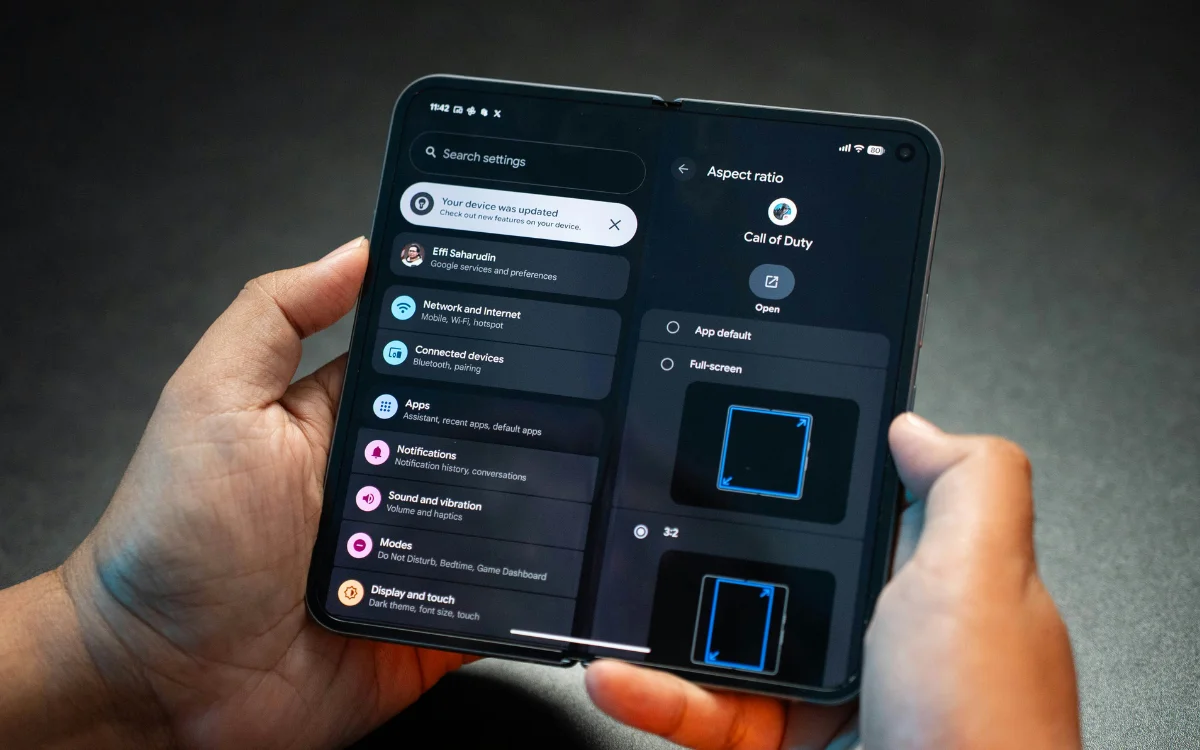
If you’re an Android user who is engaged in a constant battle with your phone’s battery life, then you might want to check out this one setting.
Over time, your phone battery degrades, meaning that you won’t get as long between charges, and you can end up having to carry charging cables and a power bank wherever you go.
Sadly, there’s not much you can do about your phone aging, but there are some juice-zapping settings and applications you should look out for.
And if you’re an Android user, there’s one that’s often set up by default, which could be draining your device even when it’s on standby.
DISCOVER SBX CARS – The global premium auction platform powered by Supercar Blondie
Here’s where to find the setting on your Android phone
There are plenty of hints and hacks that can help boost your phone’s battery life, like keeping it face down when you’re not using it or not charging all the way up to 100 percent.
If you’re an Android user, you might also want to take a dig around in your phone’s settings to see if this one network feature is running.
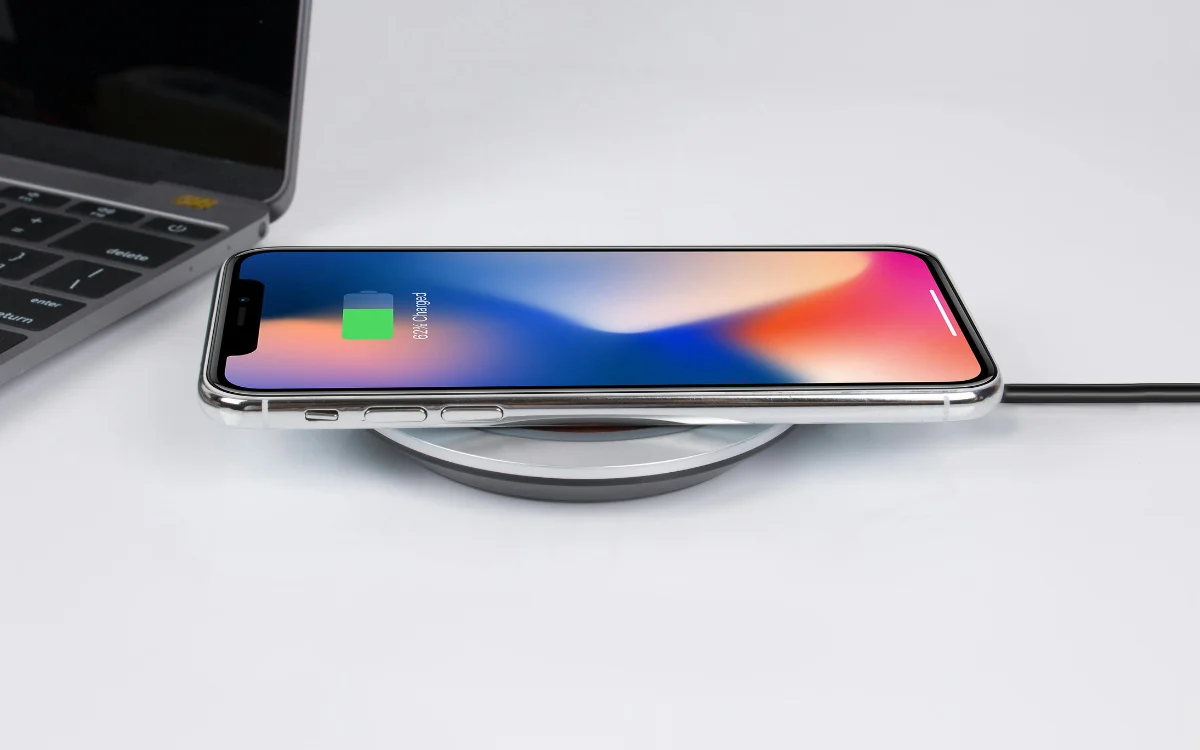
But to find it, you’ll need to get into the developer options menu, where there are more advanced settings options.
To access them, go into Settings, tap About, and then find your device’s build number or version number.
Once you’ve found that, tap it seven times and enter your password.
Then head to Settings again, and you should be able to see the System Developer options – tap this, and you’ll find a bunch of Networking toggles that you can switch on and off.
To improve your battery life, scroll down to ‘Mobile data always active’ and, if it’s on, turn it off.
As its name suggests, this setting means that even if your phone is connected to WiFi, it’ll still keep mobile data active.
And while this means you’ll experience faster loading times and a smoother performance, makeuseof.com reported that it can also use up a ‘considerable amount of power’ if it’s making your phone regularly use mobile data and connect to cell networks.
So, by turning it off, you should see an improvement in your Android’s battery life.
Click the star icon next to supercarblondie.com in Google Search to stay ahead of the curve on the latest and greatest supercars, hypercars, and ground-breaking technology
And that’s not the only way to boost your battery
Having your mobile data always active isn’t the only thing that could be draining your battery unnecessarily.
Plenty of apps have a refresh feature that works in the background to make sure you have the most up-to-date content as soon as you open them, but they can also put a strain on your phone’s battery.
Fortunately, they’re easy to switch off on Android; simply go into Settings, hit Battery, and then tap Restricted.

It’s also worthwhile to check location permissions for your apps.
Some apps, like Uber, will need to track your ‘precise location’, but for others, this is less important.
You can go into Settings and disable ‘use precise location’ for any apps that need it, and you’ll probably find that your battery starts lasting a little longer.
DISCOVER SBX CARS: The global premium car auction platform powered by Supercar Blondie
With a background in both local and national press in the UK, Claire has covered a range of topics, including technology, gaming, and cryptocurrency, since joining the editorial team at Supercar Blondie in May 2024. Her ability to be first to a story has been integral to making SB’s coverage of scientific discovery, AI, and global tech news a slick 24/7 operation.