Here's some incredible Windows 11 keyboard shortcuts that will save you so much time
Published on Mar 04, 2026 at 7:04 AM (UTC+4)
by Claire Reid
Last updated on Mar 04, 2026 at 7:04 AM (UTC+4)
Edited by
Claire Reid
If you’re a Windows 11 user and you want to be a little more productive, then there are a bunch of very handy keyboard shortcuts that can help save you time.
Whether you’re a seasoned Windows user or a recent convert from Mac, there’s never a bad time to learn some useful shortcuts.
And Windows 11 is packed full of them, some of them, like Ctrl+C for copying, you’re probably familiar with, but others, like Windows key + Shift + S to launch the Snipping Tool, might be less familiar.
So, read on to find out a handy guide to the many varied Windows 11 keyboard shortcuts and start saving time while you’re working.
DISCOVER SBX CARS – The global premium auction platform powered by Supercar Blondie
Windows 11 comes with lots of handy keyboard shortcuts
Keyboard shortcuts are a great time-saving option, and Windows has packed plenty of them into its latest operating system.
Some of them have been around a while, and others are new for Windows 11, and all of them are designed to make life a little bit easier for you.

Some common shortcuts to get you started
We’ll start off with the basics; some of these you probably already know, but if not, they’re handy to learn.
Ctrl + A: Select everything in the current window or document
Ctrl + C (or Ctrl + Insert): Copy the selected item
Ctrl + X: Cut the selected item
Ctrl + V (or Shift + Insert): Paste the copied or cut item
Ctrl + Z: Undo your last action
Ctrl + Y: Redo the last undone action
Ctrl + N: Open a new File Explorer window in the same location (when File Explorer is active)
Alt + Tab: Switch between open apps or windows
Alt + F4: Close the active app or window
Shift + Delete: Permanently delete the selected item (without it going to the Recycle Bin first)
Windows Key + F1: Open Windows help search in your default browser

Function or F-key shortcuts
Many of us largely ignore the F keys running along the top of the keyboard, but they’re actually very useful.
F2: Rename selected item
F3: Search in File Explorer
F4: Highlight the address bar in File Explorer
F5: Refresh the active window
F6: Cycle through screen elements
F10: Activate the menu bar
Alt + F8: Show password on login screen
System and app keyboard shortcuts using the Windows key
Tucked away along the bottom row of your keyboard is the Windows key, which is your key to a whole heap of shortcuts.
Windows key + A: Open Action Center
Windows key + C: Open Microsoft Copilot
Windows key + S or Windows key + Q: Open Search
Windows key + E: Open File Explorer
Windows key + F: Open Feedback Hub
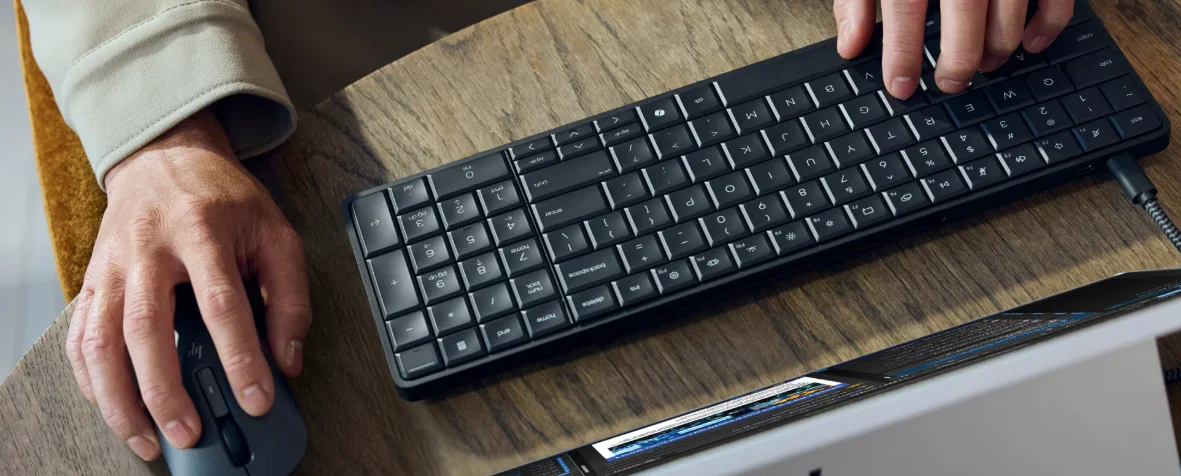
Windows key + Ctrl + F: Search for PCs on your network
Windows key + G: Open Game Bar
Windows key + H: Open Share menu
Windows key + I: Open Settings
Windows key + K: Open Connect menu (Bluetooth/Miracast)
Windows key + L: Lock your PC
Windows key + O: Lock screen orientation
Windows key + P: Open projection settings
Windows key + R: Open the Run dialog
Windows key + U: Open Accessibility settings
Windows key + W: Open Windows Ink Workspace
Windows key + +: Zoom in with Magnifier
Windows key + -: Zoom out with Magnifier
Windows key + Esc: Close Magnifier
Window management shortcuts using the Windows key
Look, we told you the Windows key was very useful when it came to shortcuts, didn’t we?
Windows key + M: Minimize all windows
Windows key + Shift + M: Restore minimized windows
Windows key + Home: Minimize all windows except the active one
Windows key + Up arrow: Maximize the active window
Windows key + Shift + Up arrow: Maximize vertically (keep width the same)
Windows key + Down arrow: Minimize the active window
Windows key + Left arrow: Snap window to the left half of the screen
Windows key + Right arrow: Snap window to the right half
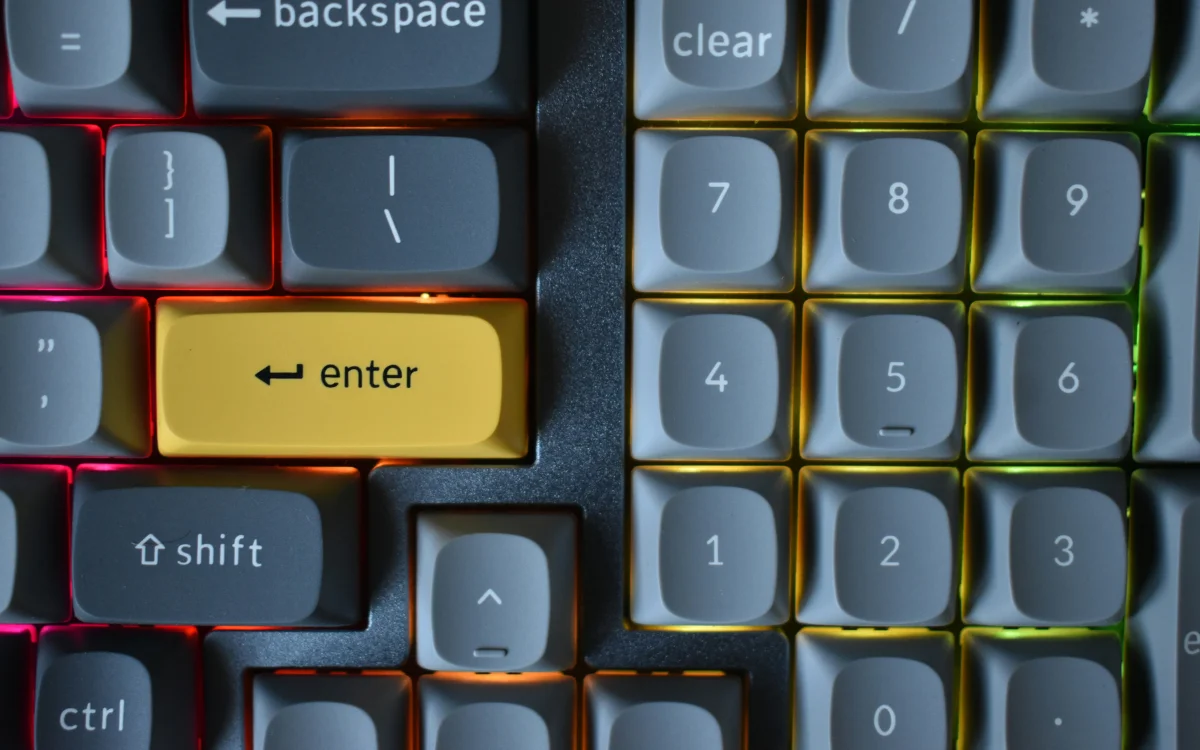
Windows key + Alt + Up arrow: Snap window to the top half
Windows key + Alt + Down arrow: Snap window to the bottom half
Windows key + Shift + Left/Right arrow: Move window to another monitor
Screenshot and emoji keyboard shortcuts
Those of you who spend a lot of time screenshotting or sharing emojis might be pleased to know there could be an easier way.
PrtScn: Copy a screenshot of the entire screen to the clipboard
Windows key + PrtScn: Save a full-screen screenshot to your Screenshots folder
Windows key + Shift + S: Open Snipping Tool to capture part of the screen
Windows key + . (period): Open the emoji keyboard
Click the star icon next to supercarblondie.com in Google Search to stay ahead of the curve on the latest and greatest supercars, hypercars, and ground-breaking technology
Windows File Explorer is also hiding some time-saving tricks
The above list of Windows 11 keyboard shortcuts is pretty thorough and will hopefully save you a bit of time.
However, if you want to save even more time, then you might be pleased to know that there are several hints and tricks you can use on the Windows File Explorer that should speed everything up.
You can check out our round-up here – and then thank us later for all the time you’ll save.
DISCOVER SBX CARS: The global premium car auction platform powered by Supercar Blondie
With a background in both local and national press in the UK, Claire has covered a range of topics, including technology, gaming, and cryptocurrency, since joining the editorial team at Supercar Blondie in May 2024. Her ability to be first to a story has been integral to making SB’s coverage of scientific discovery, AI, and global tech news a slick 24/7 operation.