Windows File Explorer has some clever tips and tricks you can use to speed everything up
Published on Feb 02, 2026 at 11:07 AM (UTC+4)
by Molly Davidson
Last updated on Feb 02, 2026 at 10:11 PM (UTC+4)
Edited by
Mason Jones

If you’ve been using Windows for years, chances are you’ve been opening File Explorer the same way the whole time.
It’s familiar, but it’s not always fast, and that’s where the frustration creeps in.
What many users miss is that File Explorer has changed significantly in recent years, even if it still looks deceptively basic.
A recent guide from Make Use Of breaks down the built-in tweaks that shave time off everyday tasks and make the tool far easier to live with.
DISCOVER SBX CARS – The global premium auction platform powered by Supercar Blondie
1. Show file extensions so files stop lying to you
Windows still hides file extensions by default, which is… not ideal.
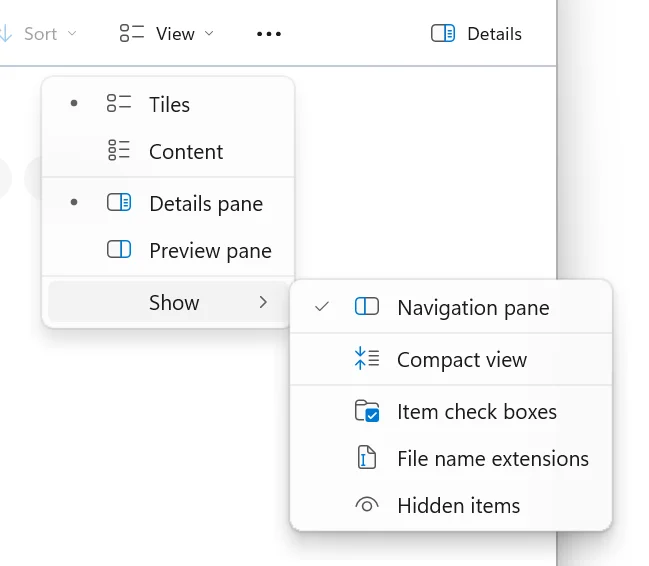
To turn them on, open File Explorer, click View, select Show, then tick File name extensions.
Once enabled, you can instantly spot file types, rename more accurately, and avoid suspicious lookalikes.
2. Use File Explorer tabs instead of juggling windows
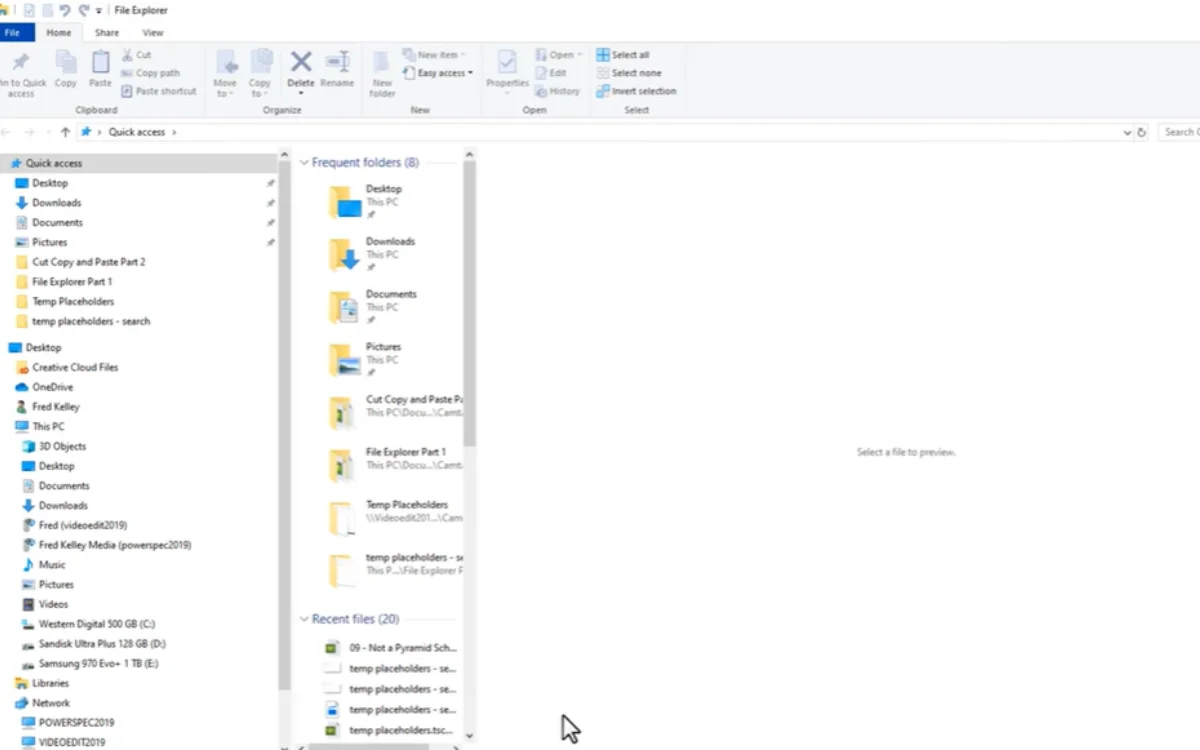
Opening five Explorer windows at once is no longer necessary or heroic.
Hit Ctrl + T to open a new tab, then Ctrl + Tab to switch between them.
You can drag files straight onto a tab header and keep everything inside one tidy window.
Click the star icon next to supercarblondie.com in Google Search to stay ahead of the curve on the latest and greatest supercars, hypercars, and ground-breaking technology
3. Choose where File Explorer opens by default
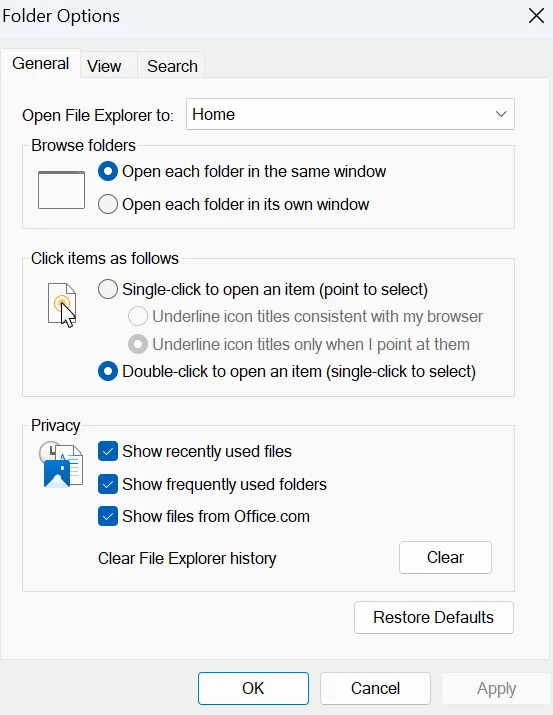
If Home isn’t your home base, change it.
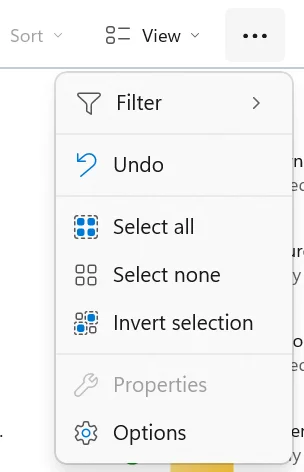
Open File Explorer, click the three dots, select Options, and set ‘Open File Explorer to’ as This PC.
It’s a tiny change that saves a surprising amount of clicking.
4. Turn Home into a proper project dashboard
Home works best once you stop letting Windows decide what belongs there.
Right-click folders you never touch and unpin them, then pin the ones you use constantly.
Do that once and Home turns into a shortcut hub instead of digital clutter.
5. Enable item checkboxes for easier file selection
Selecting files shouldn’t feel like a keyboard workout.
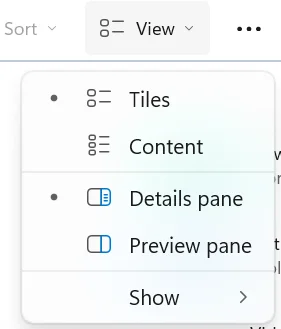
Go to View, choose Show, and enable Item check boxes.
You’ll get simple tick boxes as you hover, which is perfect when you’re deciding as you go.
6. Rename files in bulk without extra software
Bulk renaming doesn’t require extra software anymore.
Select the files, press F2, type once, and hit Enter.
Windows does the numbering for you, and Ctrl + Z bails you out if you change your mind.
7. Preview files without opening them
If you just want to peek, turn on the Preview Pane.
Press Alt + P, then click through files to preview PDFs, images, and text instantly.
Fewer apps opening, fewer regrets.
8. Copy file paths instantly
Long file paths are a chore nobody asked for.
Hold Shift, right-click the file, and choose Copy as path.
It’s one of those shortcuts you’ll wonder how you lived without.
9. Search using filters, not guesswork
File Explorer search feels unreliable because most people never narrow it down.
Click into the search bar, then use the Sort and Filter options to refine results by file type, date modified, or size.
Once you start filtering, search stops feeling like a guessing game.

None of these tricks reinvent Windows.
But they do remove friction.
And once you stop fighting File Explorer, it turns out it’s been on your side the whole time.
DISCOVER SBX CARS: The global premium car auction platform powered by Supercar Blondie
With roles at TEXT Journal, Bowen Street Press, Onya Magazine, and Swine Magazine on her CV, Molly joined Supercar Blondie in June 2025 as a Junior Content Writer. Having experience across copyediting, proofreading, reference checking, and production, she brings accuracy, clarity, and audience focus to her stories spanning automotive, tech, and lifestyle news.