Revoking these three app permissions can have an immediately positive impact on your phone's battery life
Published on Jan 20, 2026 at 6:08 AM (UTC+4)
by Claire Reid
Last updated on Jan 20, 2026 at 1:23 PM (UTC+4)
Edited by
Kate Bain
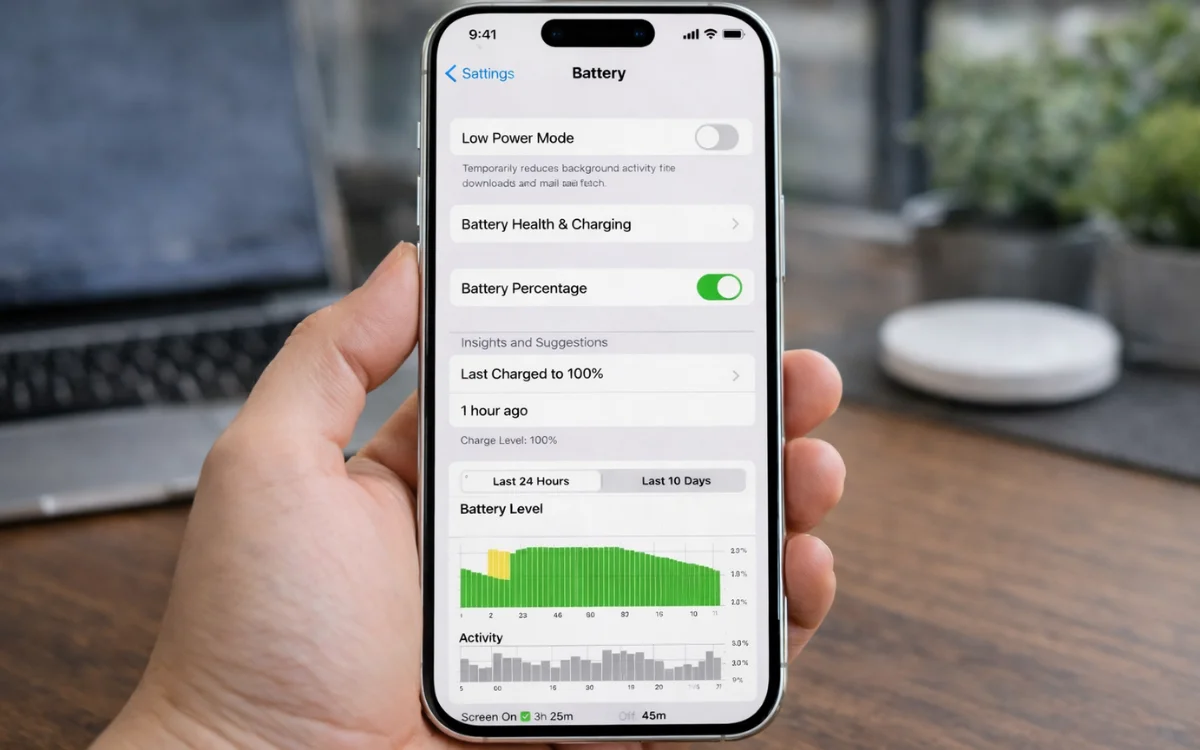

If you’re fighting a constant battle with your phone’s battery life, then revoking these three app permissions could make a huge difference.
If you’ve had your phone for a while, there’s a good chance the battery doesn’t last as long as it once did.
Over time, phone batteries degrade, meaning you won’t get as long between charges, and you might have to lug a power bank and cables with you everywhere you go.
Thankfully, there are some simple things you can do to help boost your battery life – including revoking certain app permissions.
DISCOVER SBX CARS – The global premium auction platform powered by Supercar Blondie
Some app permissions could be draining your battery
There are plenty of hints, tips, and hacks out there to make your phone battery last a little longer.
You can make sure you place your phone face down when you’re not using it, avoid swiping apps closed on your iPhone, or being careful not to charge it all the way up to 100 percent.
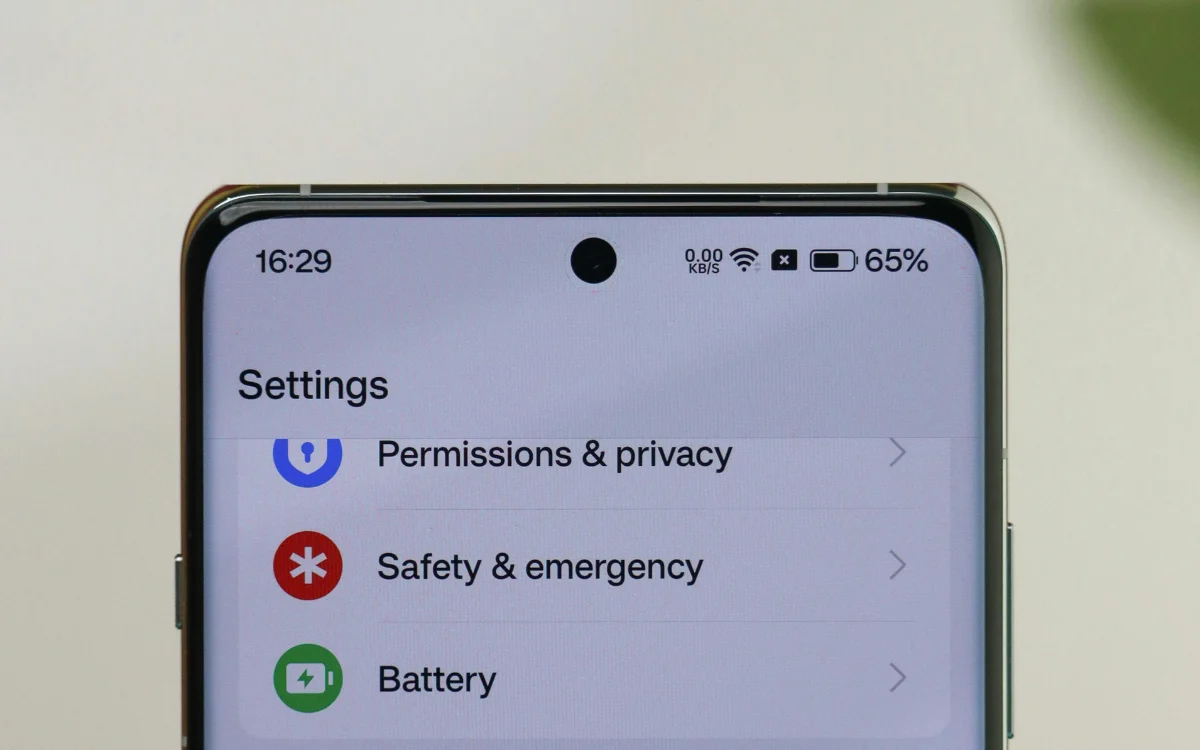
And if you’ve tried all of those and you’re still not happy with your device’s battery life, then take a closer look at your app permissions.
Whether you’ve got an iPhone or an Android, there’s a background app refresh feature that allows certain apps to run processes even when you’re not using them.
While this can be handy, as it means the apps on your phone will have the most up-to-date content as soon as you open them, it can also put a heavy strain on your battery life.
A reporter from makeuseof.com recently decided to check out the permissions on her phone and discovered that a handful of apps she hardly ever used were zapping her battery.
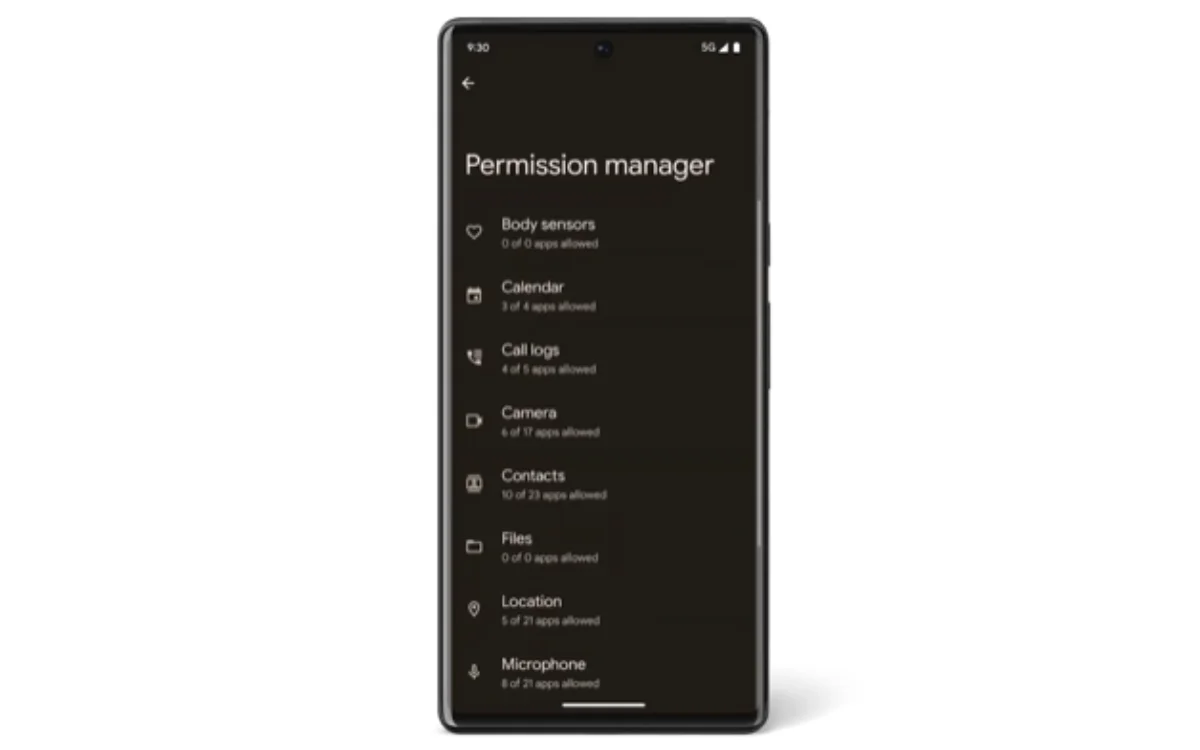
Fortunately, it can be easily switched off – simply go into the app, hit Settings, and toggle off Background App Refresh.
Or if you have an Android phone, go into the app, tap Settings, then Battery, and then hit Restricted.
Look into your location and Bluetooth settings
Next up, check your location permissions.
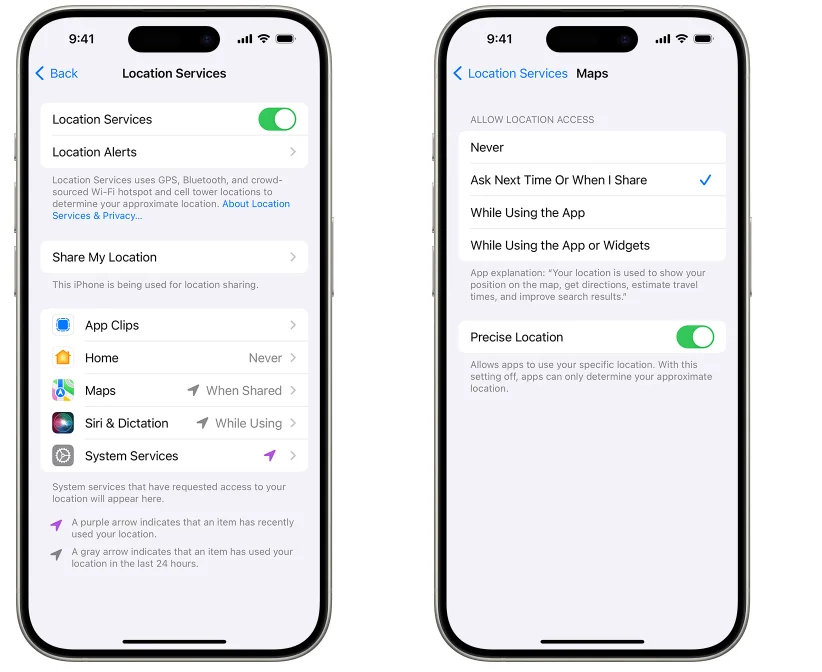
When you download an app, you’ll often be asked if it can track your location, either all the time, when in use, or never, and if you want it to track your ‘precise location’.
Having it set to a precise location requires the use of WiFi, GPS, and Bluetooth, and can be a major drain on your battery.
Of course, for some apps – like Uber or Waymo – you might want your precise location to be tracked.
But for others, it’s less important, so you can pop into your phone’s settings and disable ‘use precise location’ for any apps that you don’t really need it for.
Lastly, check your Bluetooth settings.
Even when it’s not in use, your phone can continue looking for Bluetooth devices, which will impact your battery life.
You can have a look at your settings and restrict Bluetooth to only essential apps that use it.
If you follow all the steps above, there’s a good chance you’ll see a vast improvement in your phone’s battery life.
DISCOVER SBX CARS: The global premium car auction platform powered by Supercar Blondie
With a background in both local and national press in the UK, Claire has covered a range of topics, including technology, gaming, and cryptocurrency, since joining the editorial team at Supercar Blondie in May 2024. Her ability to be first to a story has been integral to making SB’s coverage of scientific discovery, AI, and global tech news a slick 24/7 operation.