These are the Apple CarPlay settings to change if you want the best experience possible
Published on Jan 03, 2026 at 3:07 AM (UTC+4)
by Daisy Edwards
Last updated on Dec 24, 2025 at 1:44 PM (UTC+4)
Edited by
Daisy Edwards
These are allegedly the Apple CarPlay settings to change if you want the best experience possible, because the default setup is holding your dashboard back.
Apple’s in-car system is designed to be simple, but out of the box, it often feels cluttered and distracting and not very user-friendly.
A few small tweaks can make it faster to use, easier to read, and far less annoying on daily drives.
From cleaning up your app layout to reducing notifications, these settings turn CarPlay into something that actually works for you.
EXPLORE SBX CARS – Supercar auctions starting soon powered by Supercar Blondie
Apple CarPlay settings that clean up your dashboard
When it comes to in-car tech on your Apple CarPlay, it comes pre-loaded with a lot of stuff, so a good place to start is to declutter your dashboard.
The first thing to fix is your app layout because, by default, CarPlay shows every compatible app, which leads to endless swiping around while driving.
On your iPhone, head to Settings, then General, then CarPlay, select your car, and tap Apps.
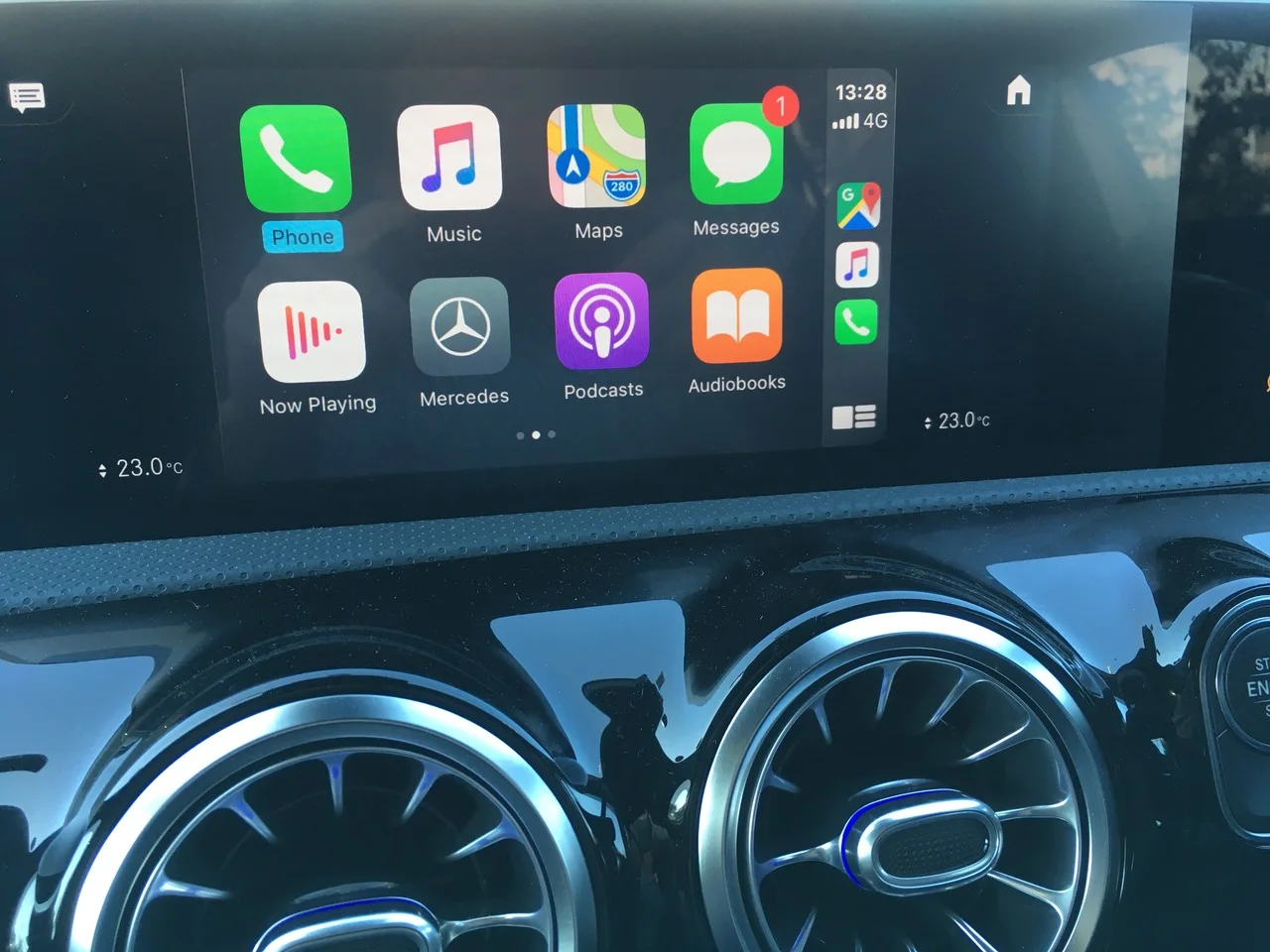
From there, remove anything you never touch and drag your most used apps to the top of the list so they appear on the first screen.
Navigation and music apps should always be front and centre: whether you prefer Apple Maps, Google Maps, Waze, Spotify, or Apple Music, putting them first cuts down on distractions.
This simple change alone makes CarPlay feel quicker and more intentional.
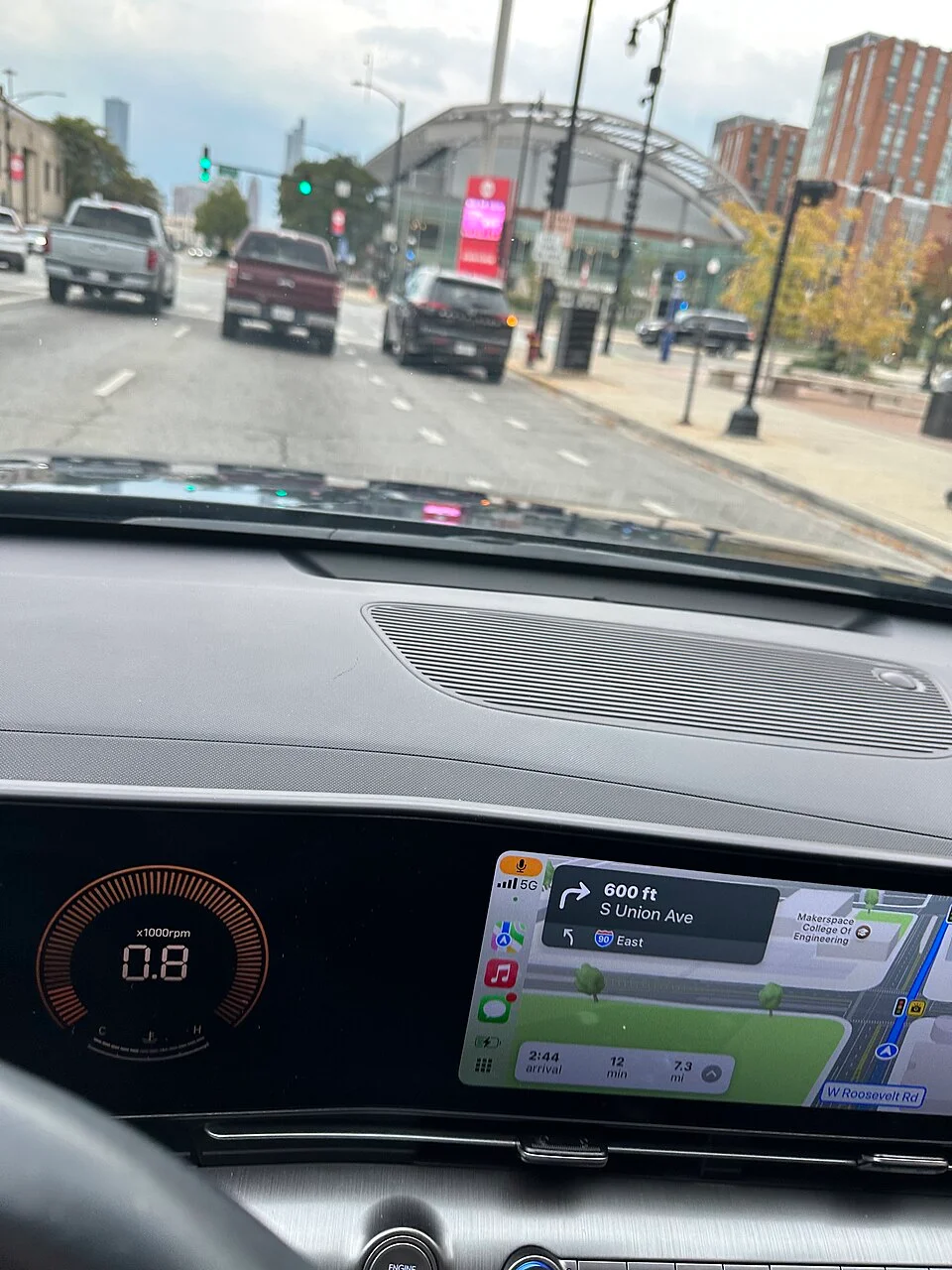
Next, look at the appearance settings on your CarPlay display: you can choose between light mode, dark mode, or automatic switching based on the time of day.
Dark mode is easier on the eyes during night driving, while Auto keeps things readable as lighting conditions change.
Reduce distractions to drive safer
The last thing you want to do is get distracted by millions of notifications when you’re trying to focus on the road.
Notifications are one of CarPlay’s biggest problems if left unchecked, so turning on ‘Driving Focus’ limits alerts to only the most important ones, helping you stay focused on the road.
Once enabled, ‘Driving Focus’ can activate automatically whenever CarPlay connects, so you do not have to think about it.
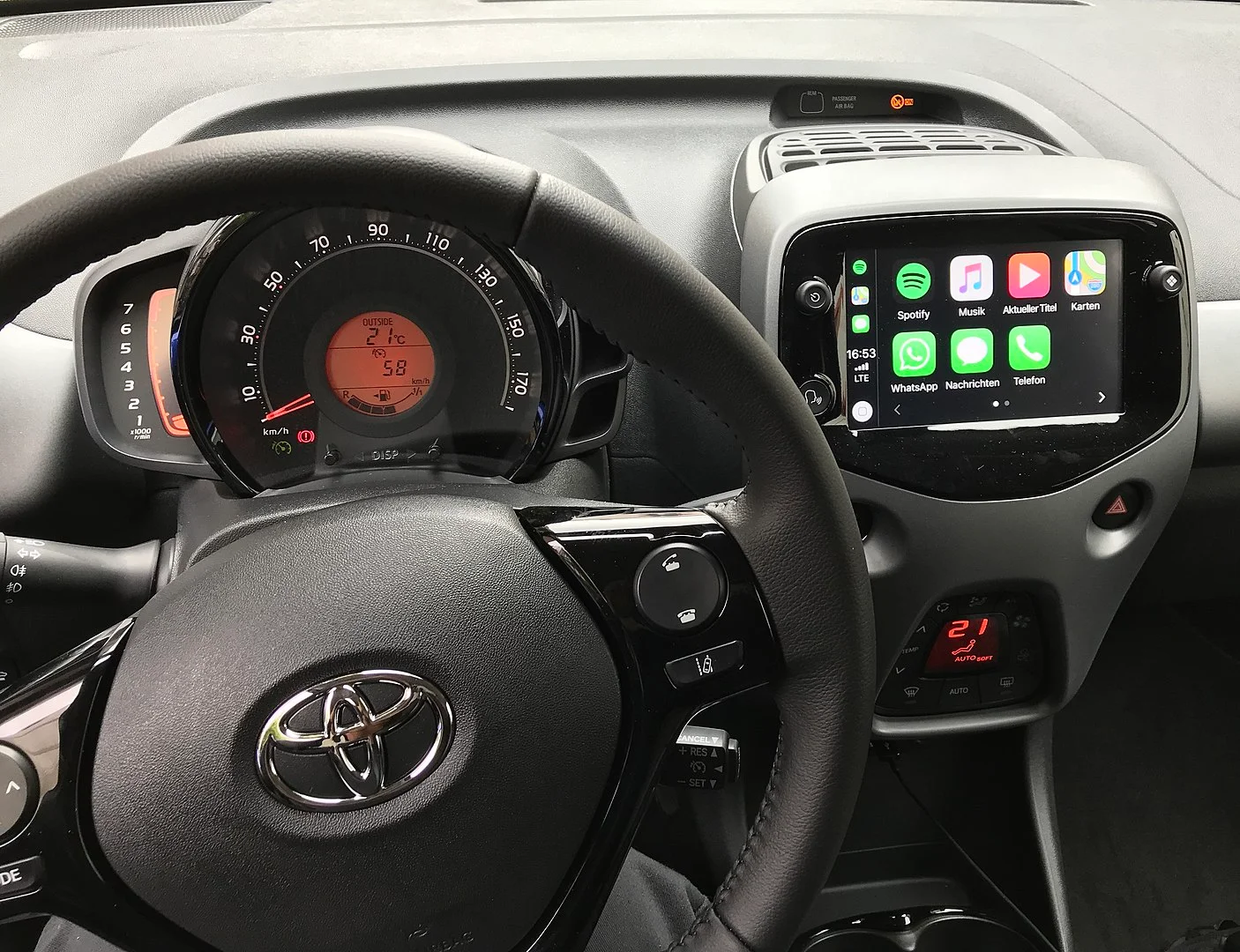
Another setting worth adjusting is dashboard suggestions, as CarPlay often tries to guess what app or route you want next, but these suggestions are not always helpful, so disabling or limiting them keeps your dashboard cleaner and easier to scan at a glance.
With the right settings, Apple CarPlay stops feeling busy and starts being the best co-pilot it can be.
DISCOVER SBX CARS: The global premium car auction platform powered by Supercar Blondie