Man shares how you can completely de-clutter your Apple CarPlay and set it up so you only see the things you want
Published on May 13, 2026 at 7:44 AM (UTC-4)
by Ben Thompson
Last updated on May 19, 2026 at 2:19 AM (UTC-4)
Edited by
Mason Jones
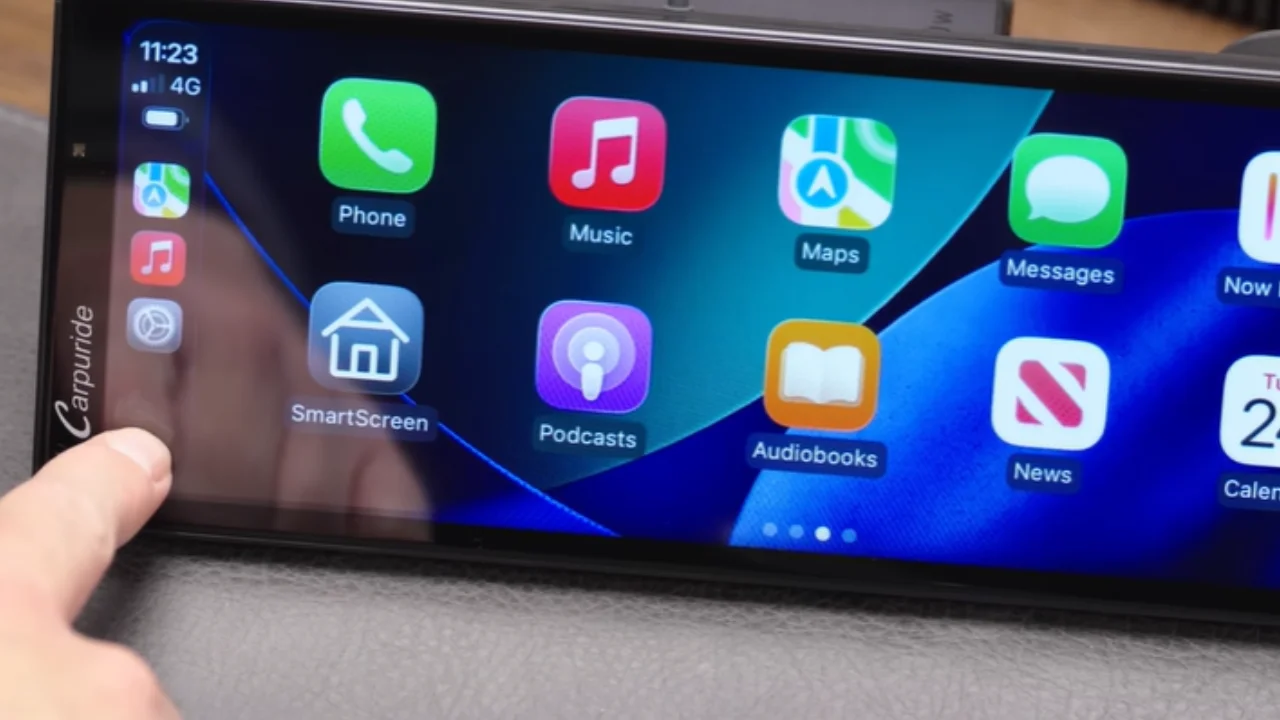

Sick of having a crowded Apple CarPlay? This man has revealed what you need to do to de-clutter.
In recent years, minimalism has been very in fashion.
And if you wanted to bring that sense of clear space to your infotainment system, you’re in luck.
One YouTuber has given out some tips on how to keep your Apple CarPlay tidy.
What you need to know about keeping things simple on Apple CarPlay
There’s no shortage of people online giving out suggestions on how you can get the most out of Apple CarPlay.
Whether it’s little hacks to transform your driving experience or voice commands, there’s a plethora of information out there.
This time around, the advice being dished out, courtesy of YouTuber Proper Honest Tech, was aimed that those looking to minimize.
Because let’s face it, there’s nothing worse than being faced with a crowded screen full of icons and images, and having to scroll endlessly to find what you want.
Here are 10 tricks and tips he offered up to help people simplify their Apple CarPlay experience.
Related



Enabling Voice Control on Apple CarPlay
By enabling ‘Voice Control’ (Found in Accessibility under Settings), the driver is able to control CarPlay entirely through voice commands.
‘Open Music’ and ‘Tap Back’ is now sufficient for navigating the interface, without needing to use a Siri trigger phrase.
Using Message Tapbacks
If you’ve ever had messages come through on CarPlay, you’ll know how tricky it is to feel like you’re giving a sufficient response.
For obvious reasons, drivers aren’t at liberty to start having a in-depth conversation with texters while on the road.
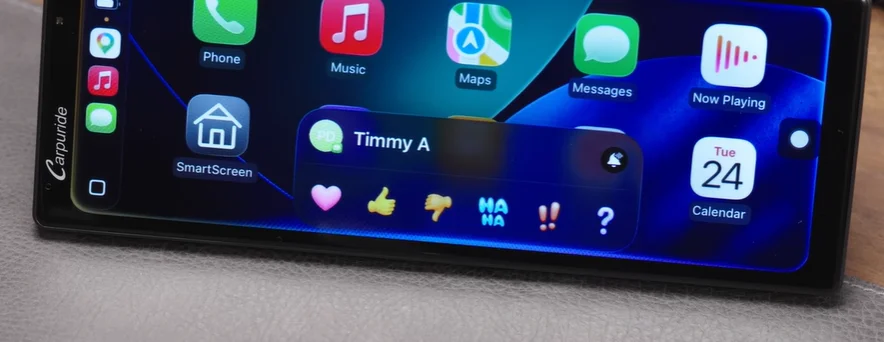
Fortunately, Message Tapback allows drivers to respond quickly through CarPlay, whether that be through a thumbs up or a heart emoji.
This feature is enabled after a message is read aloud, at which point the ‘Repeat’ button becomes a ‘Tapback’ button.
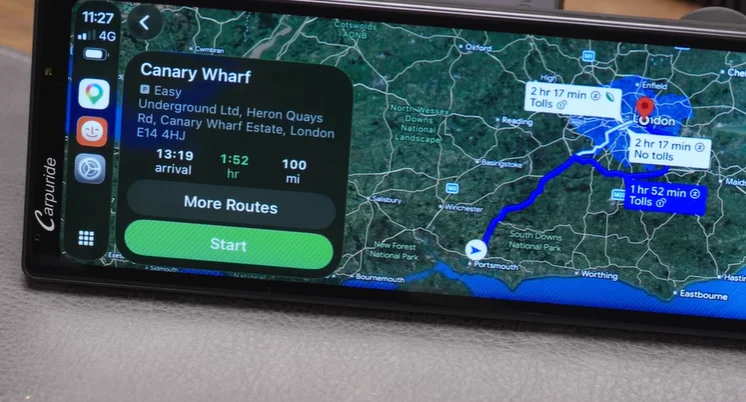
Accessing Satellite View on Google Maps
If you wanted to enable Satellite View while using Google Maps, you can do this by paying a visit to the Google Maps settings.
Here, you’ll find the ‘Satellite Map’ option and can toggle it to your preference.
Need quick access to your music?
When driving, most of us will want an accompanying soundtrack – whether that be a specific artist or a certain album.
But nobody likes the hassle of flicking through Spotify or Apple Music.
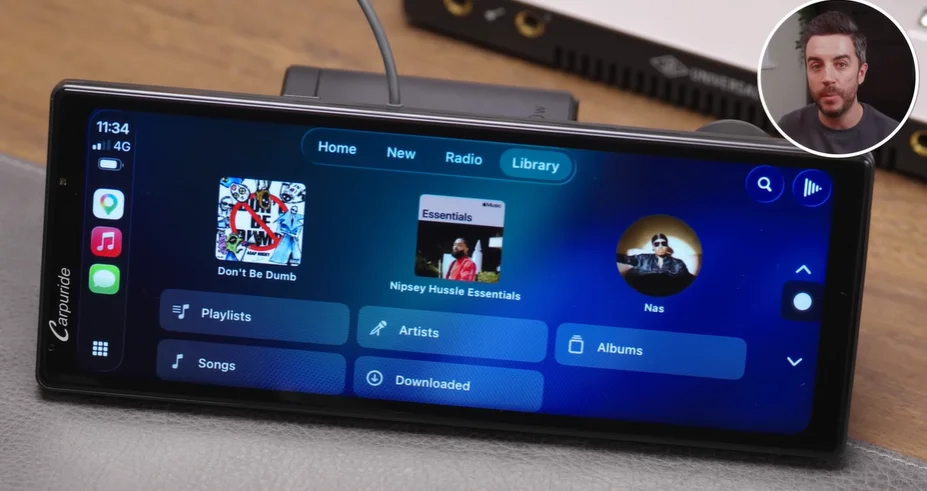
So while on your iPhone, long-press an album, playlist or an artist until the ‘Pin’ option comes up on your screen.
Once you’ve done this, the item in choice will remain at the top of your Library in CarPlay and will be easily accessible.
Opening up apps on Apple CarPlay with Siri
When you have page after page of app icons, it can be a real headache finding what you want.
Fortunately, this command simplifies that whole process.
By long-pressing the Home button, you can ask Siri to ‘Open [App name]’ for a quick and easy process.
Directing Siri to third-party apps
But that’s not all you can do with the help of Siri.
If you need something more specific, you can ask for that too – for example, ‘Get me directions using Google Maps’ and ‘Send a WhatsApp message’.
Ultimately, this is about getting technology to cut out any needless fidgeting or button clicking.
If you want to feel like a DJ, this next one is for you
Most of us like playing music in the car.
What isn’t as fun is clicking through the screen to select songs, when we should be focusing on the road ahead of us.
Fortunately, there’s a feature that can help reduce this.
By clicking on the ellipsis (…) button, the option to ‘Create Station’ pops up.
This allows drivers to automatically curate a playlist of similar music.
Customizing the Apple CarPlay Interface
If you want a say in how your Apple CarPlay screen looks, this one is for you.
Via ‘Settings’, you can select ‘Appearance’, which gives you the option between ‘Always Dark’ and ‘Automatic’ modes.
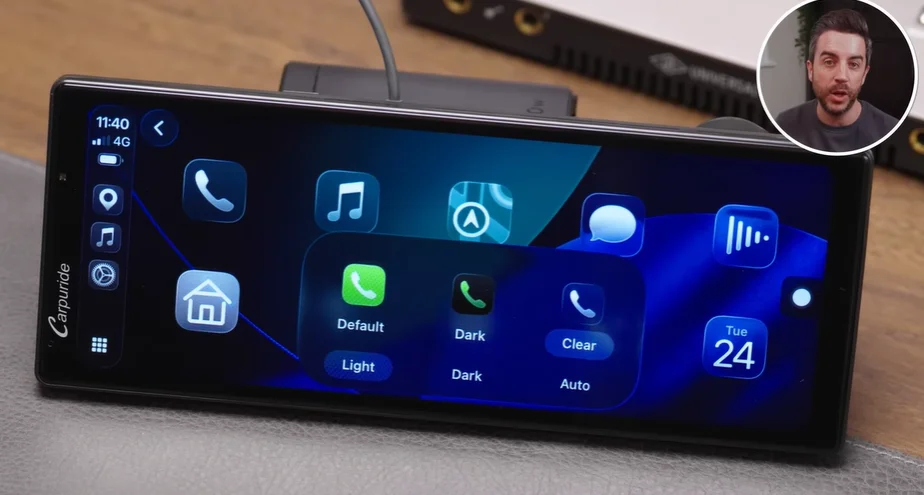
You also get the chance to alter the appearance of icons, under ‘Customize Icons’.
Are album covers taking up space on your screen?
When you’re playing music in your car, the screen can sometimes get crowded.
While the album covers are undoubtedly nice to look at, they can take up a lot of space.
If you want to have your music but not sacrifice on screen space, here’s what you need to do.
Go to ‘Settings’, click ‘Display’ and turn ‘Show Album Art’ off to get a cleaner look.

How to get your Apple Watch to stop vibrating constantly
This next feature is one that will either be super helpful or super annoying.
When you have a turn coming up, your Apple Watch could vibrate to give you a heads up.
Some people might not think they have the option to turn off the feature – while others might not know how to turn it on.
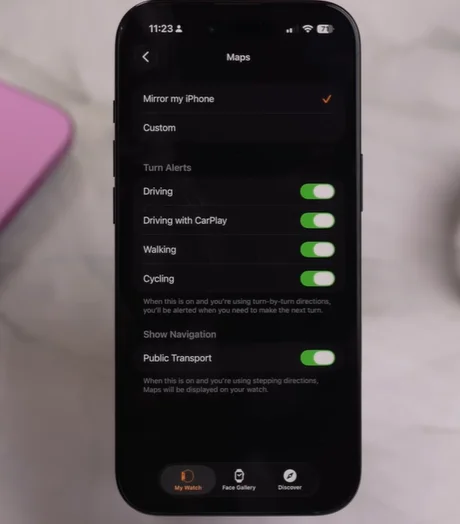
To control this feature, head to the Watch App on your phone and click on ‘Maps’.
From there, select ‘Turn Alerts’ and toggle the ‘Driving with CarPlay’ to your preference.
Ben joined Supercar Blondie in February 2025 after being published by international organizations including LADbible, The Sun, the New York Post, and the Daily Mail. He covers supercars, rare and collectible vehicles, aviation, luxury assets, and the fascinating people behind them. His reporting has explored everything from seven-figure supercars and historic Ferrari collections to unusual aircraft adventures and extraordinary automotive discoveries from around the world. Ben has also gained first-hand insight into vehicle craftsmanship and customization, including visiting specialist workshops to see bespoke vehicles up close.