Incredible shortcuts you can use on your iPhone that nobody is using despite it making everything easier
Published on Jan 23, 2026 at 5:01 AM (UTC+4)
by Keelin McNamara
Last updated on Jan 22, 2026 at 10:04 PM (UTC+4)
Edited by
Amelia Jean Hershman-Jones
These are some incredible tech shortcuts you can use on your iPhone.
What is even more incredible is that nobody uses them.
But they can make almost every function easier.
One YouTuber detailed the best ones to make a habit.
DISCOVER SBX CARS: The global premium car auction platform powered by Supercar Blondie
1. Straight to the settings of your iPhone app
Content creator ThioJoe wanted to make your screentime more straightforward.
The first of these brilliant shortcuts takes you straight to the settings of the current app you’re using.

Have you ever had to go through the steps of trying to find a specific app, then find the settings of that app?
You can add this by going to the control panel and adding the ‘run shortcut’ feature.
Once you swipe down to your iPhone control panel, it should be there.
Click the star icon next to supercarblondie.com in Google Search to stay ahead of the curve on the latest and greatest supercars, hypercars, and ground-breaking technology
2. Want to save a specific YouTube video?
The next intriguing hack is useful if you want to create a shortcut to a YouTube video.
Go to YouTube and use the ‘share’ feature to copy the link in question.
What you then want to do is use the ‘open’ action for shortcuts in your settings.

Paste the YouTube link in question, but there is one more step.
Replace the ‘https://’ data with the word ‘YouTube://’ at the very beginning.
Keep the rest of it the same, and YouTube’s app will open to that specific page.
3. List of available iPhone app updates
This tip is especially handy if you find it hard to keep up with updates for your apps.
It will allow you to go to a singular area to find any and all updates that are needed.
Like the others, simply swipe down and add it to your control panel of shortcuts.
It should take you to a centralized page where you can see all the apps that need updating.
4. Auto-brightness too bright…or not bright enough?
Auto-brightness is a setting that can irritate anybody.
Sometimes your screen is too bright, and sometimes it’s not bright enough.
Thankfully, the YouTuber has you covered.
Simply copy the link to the shortcut and add it to your control panel.
It will bring you to the toggle option for auto-brightness so you can decide whether to keep it on or not.
5. Want to silence unknown callers?
Now this one should appeal to many of you.
Want to silence those pesky calls from people you don’t know?
Well, this shortcut is the perfect solution for you.
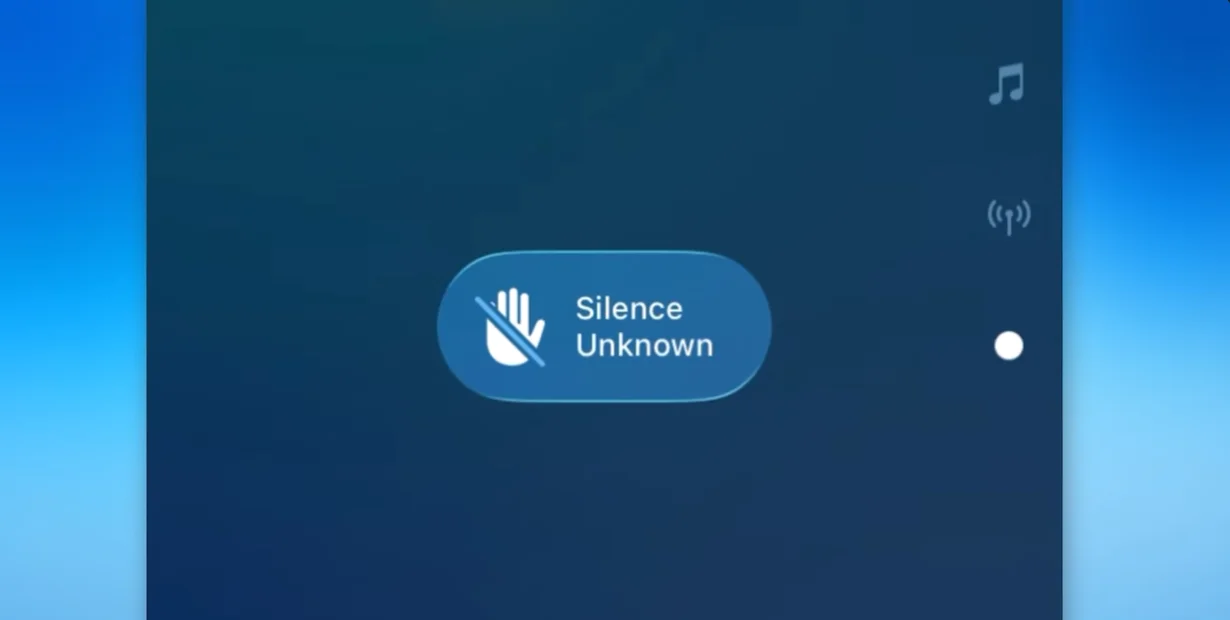
This shortcut is beneficial because it will bring you straight to the ‘silence unknown callers’ toggle.
Simply scroll down to the ‘silence’ option in ‘screen unknown callers’.
No more being interrupted by irritating calls from people you don’t know.
The rest of the video contains more quick fixes and shortcuts for you to consider.
And the remainders cover pretty much everything you can think of (or haven’t thought of).
So check out the video and the list of links to each – because it might just make functions on your iPhone easier.