This little-known iPhone shortcut lets you text Claude for quick AI help anytime, anywhere
Published on Mar 10, 2026 at 7:04 AM (UTC+4)
by Claire Reid
Last updated on Mar 10, 2026 at 7:04 AM (UTC+4)
Edited by
Claire Reid
There’s a handy iPhone shortcut that allows you to simply send a text Claude throughout the day as though it’s your personal assistant.
Apple launched one of the very first personal virtual assistants when it introduced Siri to the iPhone 4s around 15 years ago, and was soon joined by a bunch of other handy digital helpers, like Alexa and Copilot.
In more recent years, we’ve seen the rise of chatbots, like ChatGPT and Gemini, which can offer even more detailed and tailored assistance.
Now, there’s a way to make a shortcut that’ll allow you to text Claude whenever you want, turning it into a personal assistant that can offer AI help, whenever you need it.
Click the star icon next to supercarblondie.com in Google Search to stay ahead of the curve on the latest and greatest supercars, hypercars, and ground-breaking technology
Turn Claude into your personal assistant on your iPhone
AI is used by millions of people across the world for everything from writing a professional-sounding email to helping them carry out an oil change.
For now, those wanting to use an AI chatbot for assistance will typically open up the app, send a prompt, and wait for a response.
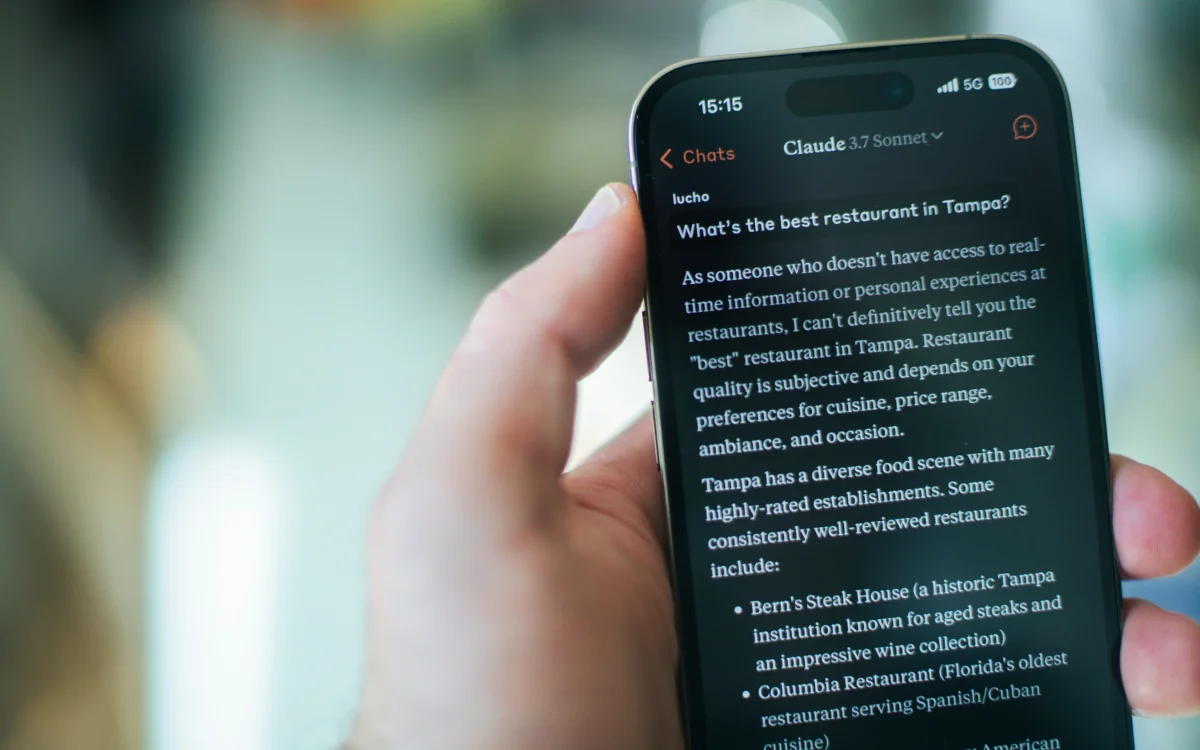
But one of the team at Tom’s Guide recently used a smart iPhone shortcut so that she can simply send Claude a text message as a prompt, so it feels a little like having your very own AI-powered personal assistant in your hand.
Setting it up requires Apple’s Shortcut automation tool, which can be used to create all manner of helpful shortcuts.
In this instance, you’ll set up the shortcut to recognize a trigger phrase in your text message, which means it’s then picked up and sent to Claude via an API request.
While the process sounds a little complicated, it’s actually quite straightforward and shouldn’t take long to set up.
Here’s how to set it up
Start by opening the Shortcuts app on your iPhone, then hitting the Automation tab at the bottom and tapping the small + symbol to build a new personal automation.
Select Message as the trigger and then set up the automation to run when you type a certain phrase – for example: ‘/Claude’.
Make sure the Claude app is open on your iPhone, and then add the following actions in this order: Get Text from Input – Open App > Claude – Ask for Input
Now, when the automation runs, it’ll automatically send any messages with the trigger phrase to Claude to get a response.
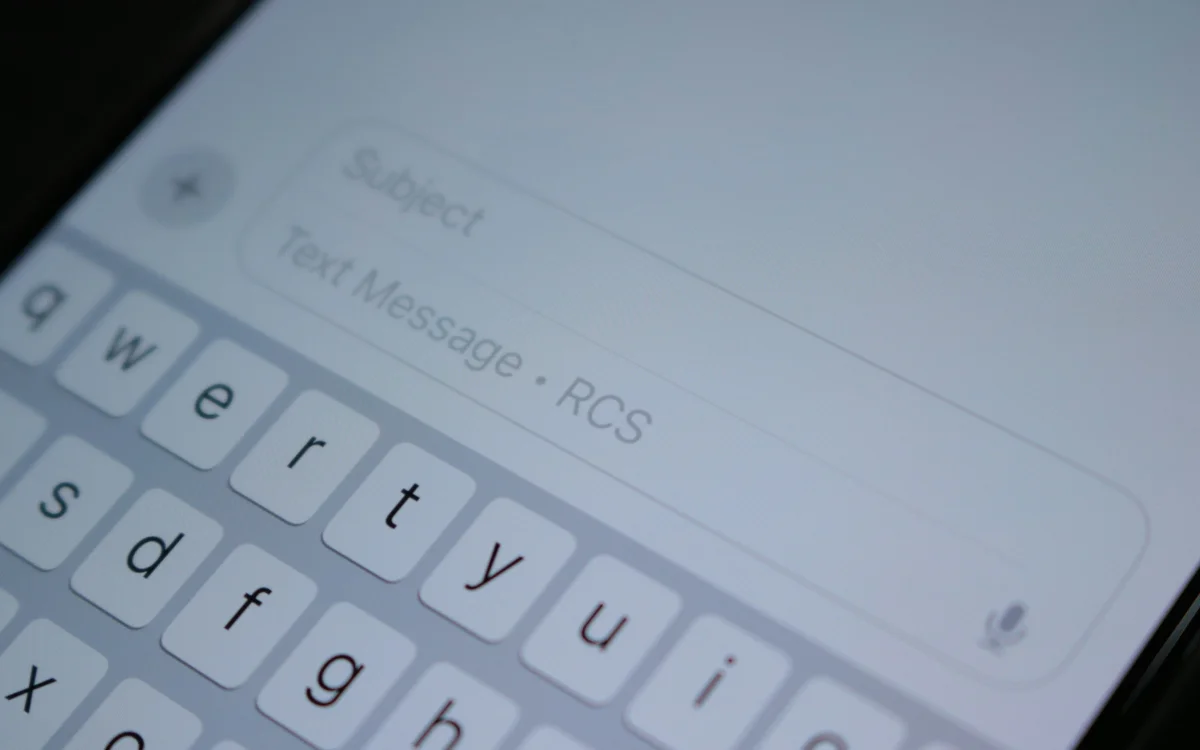
When Claude generates your response, you can simply copy it and send it back to yourself in Messages so that you can keep the conversation right in your Messages app.
You can also swap out Siri for ChatGPT
If ChatGPT is your preferred LLM of choice, then there’s an easy way to replace Siri with it on your iPhone.
To set it up, go into the Apple Intelligence settings on your phone and head over to the Siri customization menu, where you’ll find the ChatGPT extension.
Once you’ve enabled the extension, disable the Confirm Request option to allow Siri to access ChatGPT without having to provide manual approval for each query.
From this point on, Siri can effortlessly use ChatGPT.
DISCOVER SBX CARS: The global premium car auction platform powered by Supercar Blondie
With a background in both local and national press in the UK, Claire has covered a range of topics, including technology, gaming, and cryptocurrency, since joining the editorial team at Supercar Blondie in May 2024. Her ability to be first to a story has been integral to making SB’s coverage of scientific discovery, AI, and global tech news a slick 24/7 operation.