These are six Apple CarPlay settings you can change to make it the smoothest experience possible
Published on Dec 09, 2025 at 9:51 AM (UTC+4)
by Jason Fan
Last updated on Dec 09, 2025 at 9:43 PM (UTC+4)
Edited by
Mason Jones

Your Apple CarPlay settings can be the difference between a calm, smooth drive and one filled with tiny frustrations that slowly drive you up the wall.
CarPlay is designed to reduce stress behind the wheel, but a handful of default options don’t work equally well for everyone.
The good news is that Apple has quietly packed CarPlay with customization tools that let you tailor it to your driving style.
In fact, a few small changes can make your dashboard feel less chaotic and a lot more driver-friendly.
SBX CARS – View live supercar auctions powered by Supercar Blondie
1 – Driving Focus
One of the most impactful tweaks to your Apple CarPlay settings involves Driving Focus, Apple’s built-in distraction blocker.
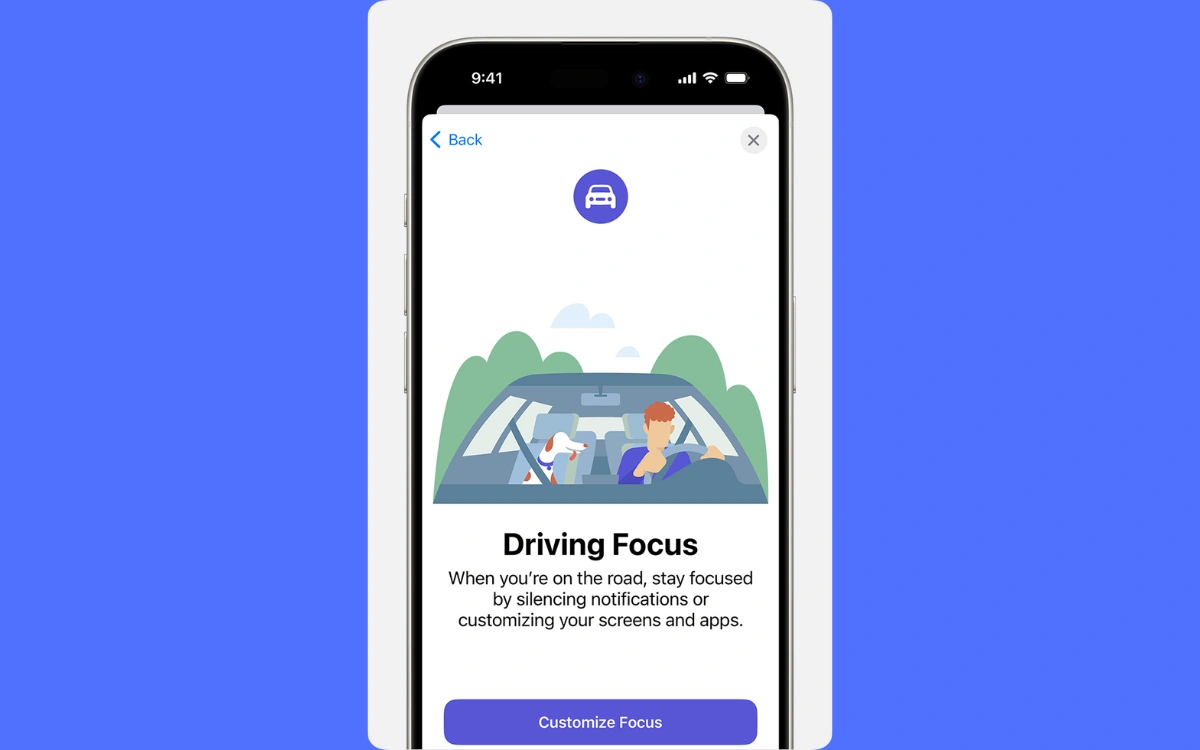
When enabled, it limits phone calls and text notifications while you’re on the road, reducing the temptation to glance at your screen.
You can allow messages from specific contacts (wouldn’t want any missed calls from Mom) or enable repeated calls to break through in emergencies.
There’s even an automatic reply feature that lets people know you’re driving, so you’re not pressured to respond.
2 – Announce Messages
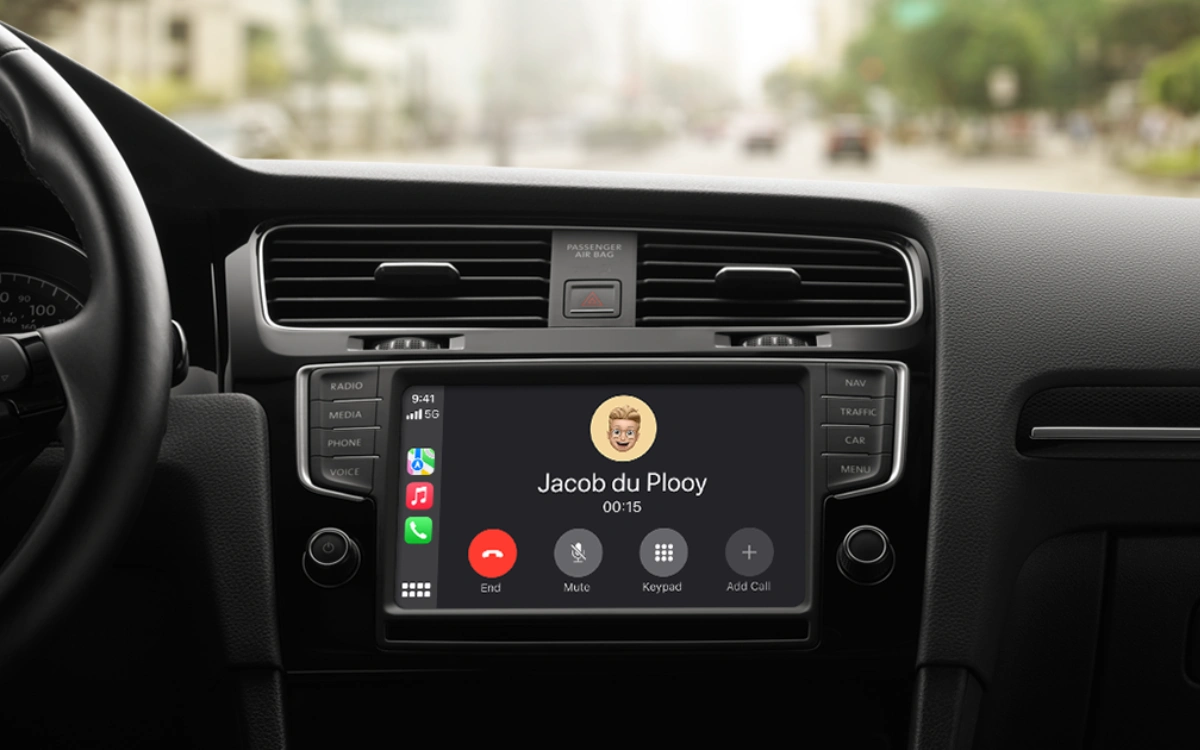
Another setting that often causes frustration is Announce Messages.
Siri reading your texts aloud can be convenient on a long solo drive, but it can quickly become awkward or distracting when passengers are involved.
Turning this feature off keeps your conversations private and lets you focus on navigation and music without interruptions.
3 – Siri Suggestions
You might also want to rethink Siri Suggestions.
These pop-up prompts try to anticipate what you’ll need next, such as directions to a calendar appointment or smart home controls.
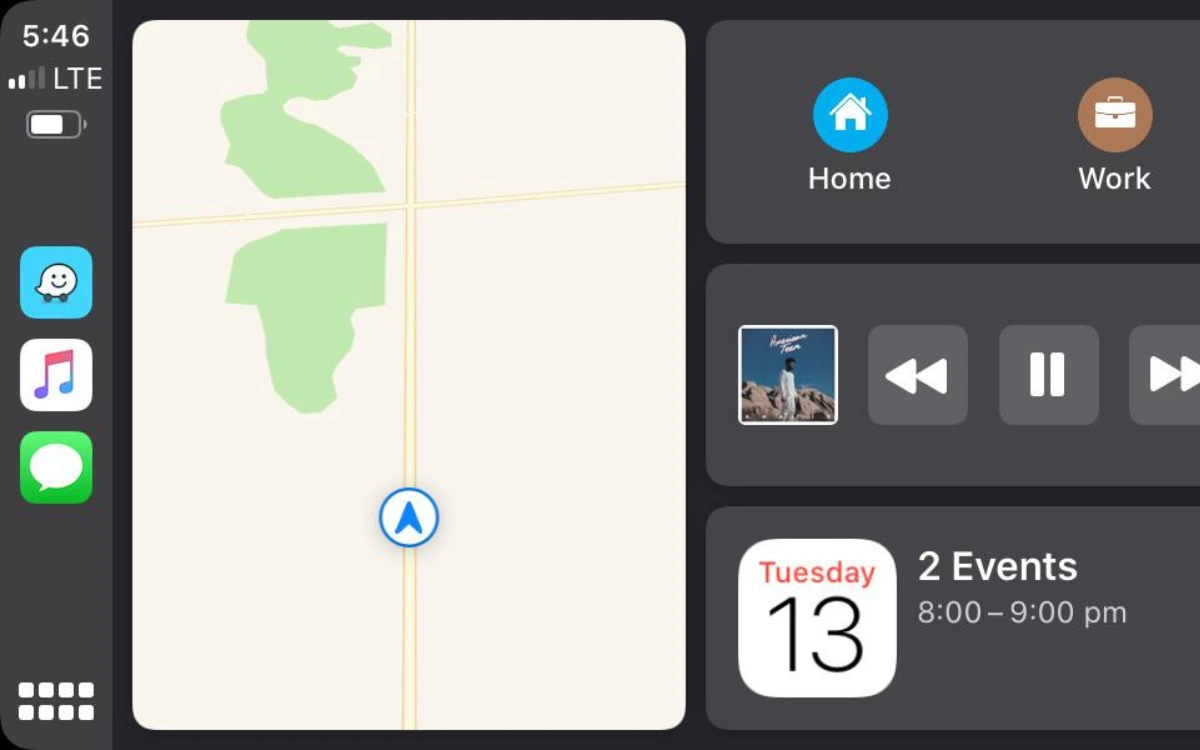
While helpful in theory, especially since Siri may soon be powered by Google’s Gemini, they can clutter the screen and pull your attention away from the road.
Disabling Suggestions is an easy win for a cleaner, calmer display.
4 – Smart Display Zoom
With the arrival of iOS 26, Smart Display Zoom has entered the picture, which makes a huge difference when you switch it on.
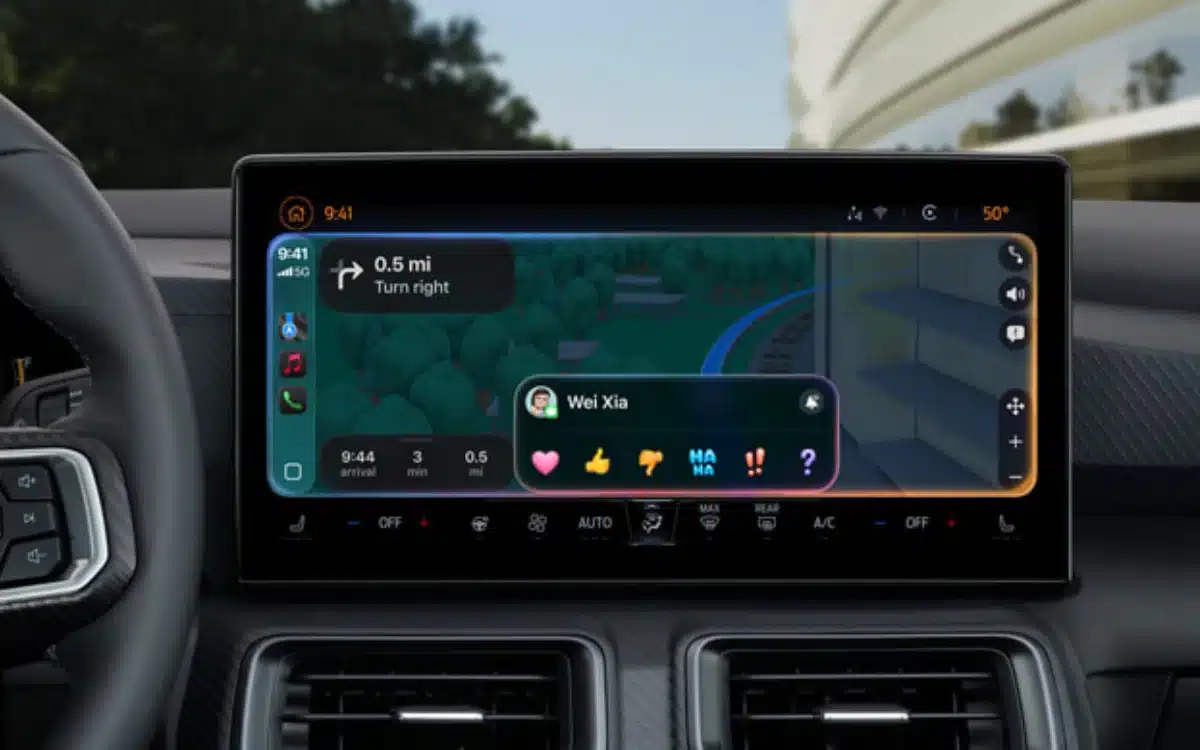
It automatically resizes icons and text based on your vehicle’s screen size, fitting more onto the display.
The trade-off is readability, as many drivers find the text uncomfortably small.
Turning it off restores larger icons that are easier to read at a glance.
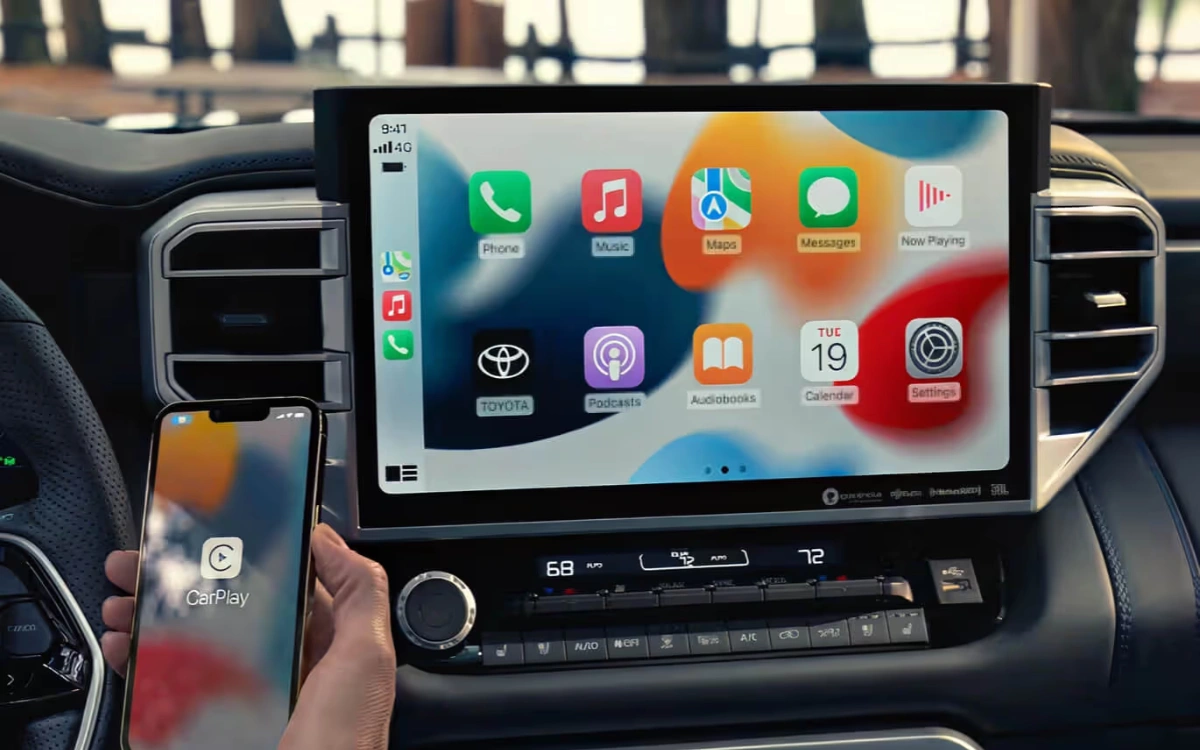
5 – App organization
App organization is another overlooked source of distraction.
By default, CarPlay arranges apps alphabetically, which often buries your favorites on later screens.
By rearranging the home screen, you can ensure that important apps like Waze and Google Maps appear first, while hiding unused ones.
This cuts down on swiping, and keeps essential tools within easy reach.
6 – Accessibility options
Finally, don’t ignore appearance and accessibility options.
Switching between light and dark modes, adjusting icon styles, or using color filters can significantly improve visibility and reduce eye strain.
When CarPlay looks the way you want it to, it feels less like a gadget and more like a helpful co-pilot.
In fact, if you want even more mileage out of Apple CarPlay, there are still plenty of tricks that many people are unaware of.
DISCOVER SBX CARS: The global premium car auction platform powered by Supercar Blondie