This secret iPhone gesture that barely anyone knows about is incredibly helpful for lots of things
Published on Feb 27, 2026 at 5:07 AM (UTC+4)
by Claire Reid
Last updated on Feb 27, 2026 at 9:36 PM (UTC+4)
Edited by
Mason Jones
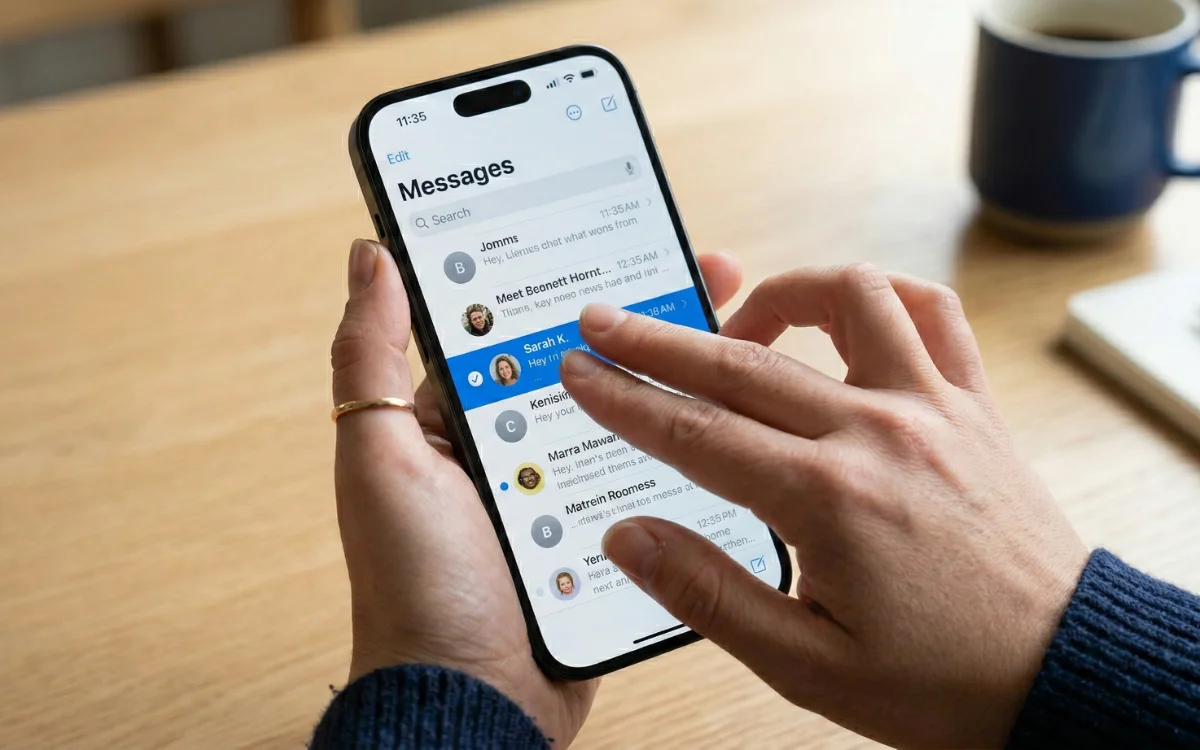

There’s a little-known gesture you can make on your iPhone or iPad screen that is super useful across a bunch of different applications.
Even if your daily screen time is nearing double figures, there’s probably still plenty you don’t know about your iPhone.
Like how to easily make a PDF without downloading an additional app, or how to play ambient music without a subscription to Apple Music.
But aside from its apps, the iPhone and iPad touchscreen is also hiding some secrets, and one of them could save you a lot of time, especially when it comes to your messages and emails.
DISCOVER SBX CARS – The global premium auction platform powered by Supercar Blondie
This simple iPhone shortcut is a real time saver
If you’ve got loads of old emails or messages clogging up your inbox, and you want to get rid of them, swiping left and deleting them can take a long time.
However, there’s actually a very simple way to select multiple items at once and delete them – a little bit like hitting Command-A or holding down the Shift key on your computer.
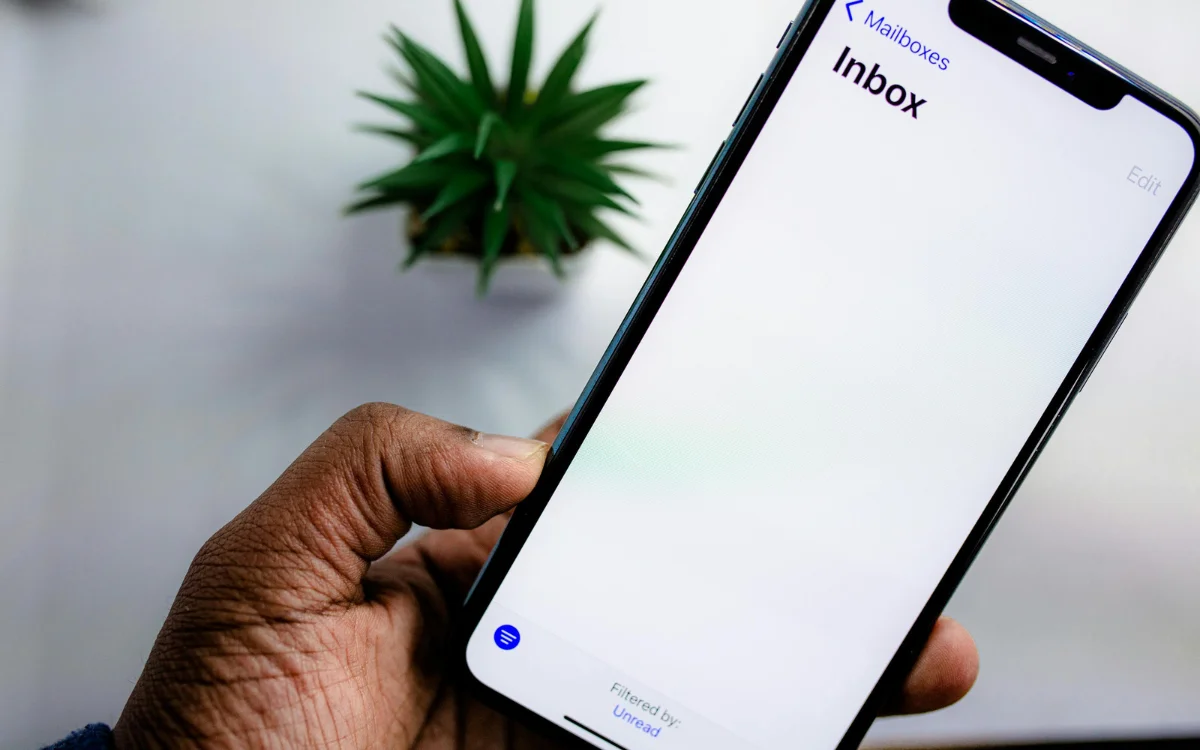
Open up any list of items on your iPhone or iPad, such as your messages, and then swipe with two fingers to start selection mode.
Pull your fingers down the screen, and it’ll automatically select all the items.
If you happen to select one that you don’t want to delete, then simply hit the little check mark next to the message to uncheck it.
Once you’ve selected all the messages you’d like to get rid of, tap Delete in the bottom right corner, and you’re all done.
The handy function doesn’t just work in your emails and messages, either; it’ll work anywhere you find a list.
For example, you can also use it in Reminders to remove or reorder them, as well as in Files and Notes to select bulk items, and in the Phone app to mark missed calls.
Click the star icon next to supercarblondie.com in Google Search to stay ahead of the curve on the latest and greatest supercars, hypercars, and ground-breaking technology
It’s not the only handy touchscreen gesture
The selecting gesture isn’t the only neat touchscreen shortcut.
You can press and hold the spacebar on your iPhone’s keyboard to launch the trackpad feature that’ll allow you to move your cursor wherever you want by sliding your finger around.
There’s also an easy way to undo or redo an action.
If you happen to delete something by mistake, take three fingers and slide them to the left of the screen, and the word ‘Undo’ will appear at the top, tap it, and whatever you just did will be undone.
To redo an action, swipe your fingers right, instead of left.
Timeline of the Apple iPhone
2007: First generation is announced by Steve Jobs
2008: iPhone 3G is launched with 3G connectivity and the App store
2010: iPhone debuts with Retina Display and new glass/steel design
2011: Siri is introduced
2013: Touch ID is introduced with the 5S
2016: The headphone jack is removed with the 7 and 7 Plus
2017: Face ID is introduced
2020: iPhone 12 series introduces 5G
2024: The 16 series introduces enhanced on-device AI features and camera controls
DISCOVER SBX CARS: The global premium car auction platform powered by Supercar Blondie
With a background in both local and national press in the UK, Claire has covered a range of topics, including technology, gaming, and cryptocurrency, since joining the editorial team at Supercar Blondie in May 2024. Her ability to be first to a story has been integral to making SB’s coverage of scientific discovery, AI, and global tech news a slick 24/7 operation.