You can set your Apple CarPlay to make a custom start-up sound and this is how you do it
Published on Jan 21, 2026 at 9:17 AM (UTC+4)
by Molly Davidson
Last updated on Jan 21, 2026 at 1:48 PM (UTC+4)
Edited by
Mason Jones
Apple CarPlay has a hidden trick that lets you change the sound your car plays when it connects.
Instead of the usual silence, you can make it play a custom audio clip every time you start the car.
The hack uses Apple’s own Shortcuts app and works automatically the moment CarPlay connects.
Below is the step-by-step setup to create your own start-up sound in just a few minutes.
DISCOVER SBX CARS – The global premium auction platform powered by Supercar Blondie
Step 1: Open the Shortcuts app
This entire hack lives inside Shortcuts, which is already sitting on your iPhone.
Therefore you won’t need to download anything new (yay!).
If you’ve never used Shortcuts before, don’t overthink it.
You’re not building anything complicated.

You’re just telling your phone to do one very specific thing at a very specific moment.
Open the app and get comfortable with it. That’s the hardest part, honestly.
Click the star icon next to supercarblondie.com in Google Search to stay ahead of the curve on the latest and greatest supercars, hypercars, and ground-breaking technology
Step 2: Create a new CarPlay automation
Inside the Shortcuts app, tap the Automation tab along the bottom of the screen, then select Create Personal Automation.
Scroll until you see CarPlay and select it.
This tells your iPhone you want something to happen automatically when Apple CarPlay gets involved.
Not when you tap a button, but the moment your car connects.
That’s the key.
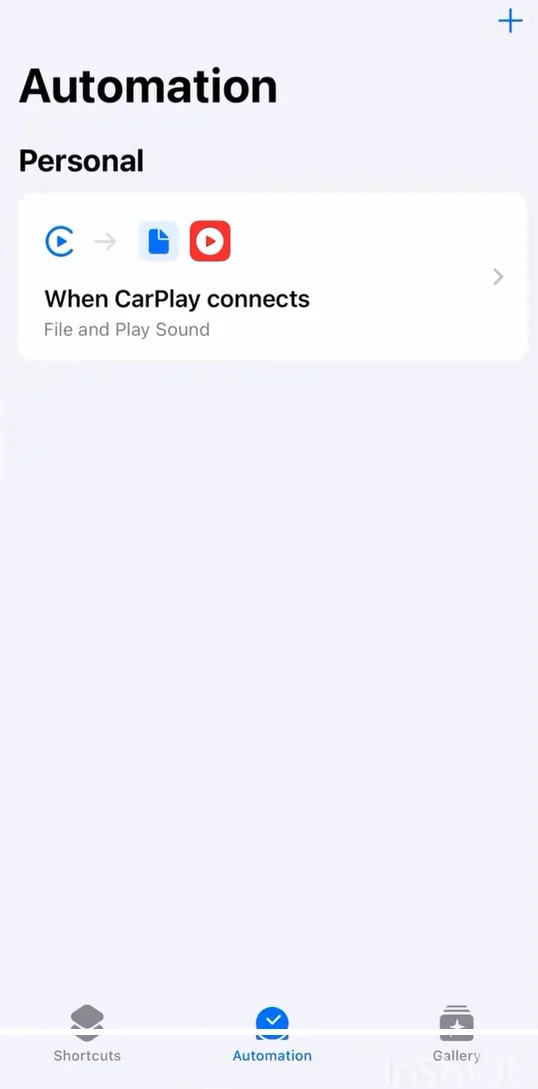
Step 3: Set it to run the second CarPlay connects
Choose Connects, not Disconnects.
Then make sure Run Immediately is switched on.
This skips the confirmation pop-ups and lets the sound play without asking permission every time.
If you miss this step, the whole thing still works – it can just be a bit annoying.
This is what makes the audio feel like a true start-up sound, not a manual gimmick.
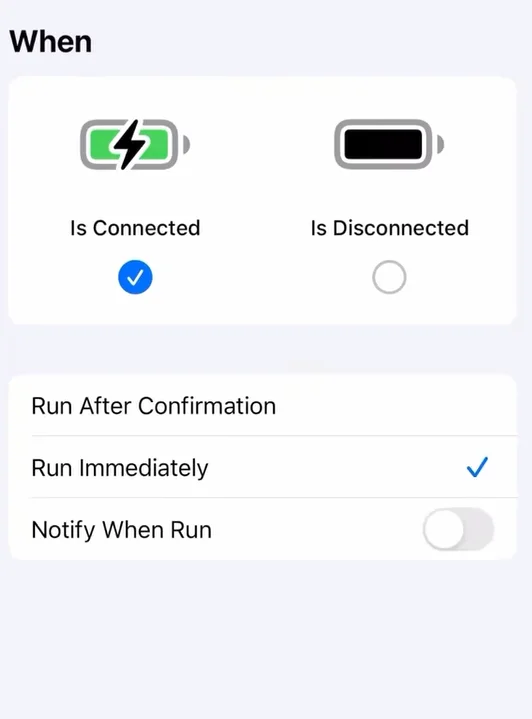
Step 4: Add your audio file
Tap Add Action, search for Get File, and select it.
Then tap the blue ‘File’ link to browse your Files app.
You’ll need to have your audio clip saved ahead of time.
Short MP3 or M4A files work best.
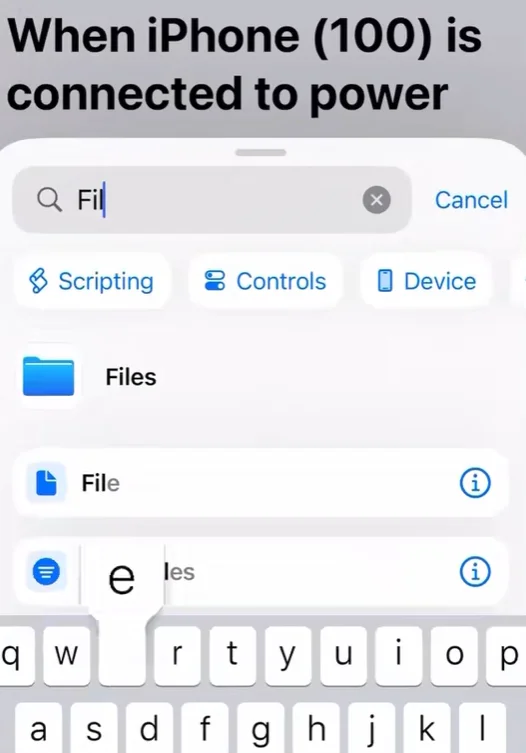
Think quotes, or maybe your latest vocal stim – not full songs.
Once it’s selected, you’re halfway there.
See the clip below for some inspo.
@kjackson_91 How have I yet to see someone use this sound yet? It was the first to come to my mind and I’m keeping it for sure 👍 😂 #applecarplay #carplaysound #tech #cartok #fyp #foryoupage #viral #trend #carplay #carplayscreen #ethelcain #thx #theater #sound #cadillac #starwars #win #startup ♬ original sound – kjackson_91
Step 5: Tell it to play
Add another action and search for Play Sound.
This connects the file you chose to actual audio output through Apple CarPlay.
This is the moment it all clicks.
The automation now knows what to play and when to play it.
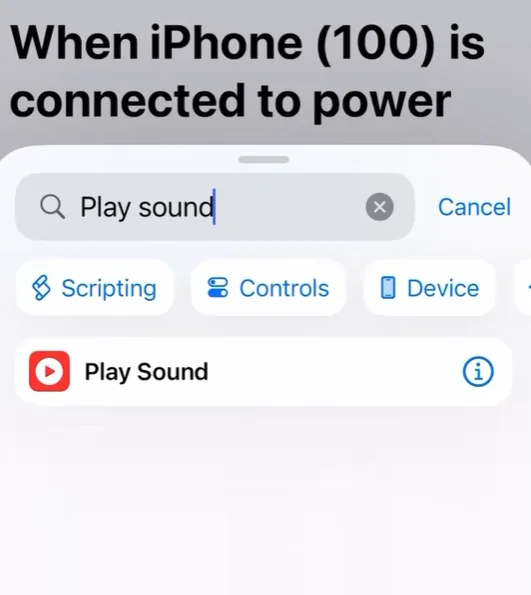
Step 6: Save it and test it
Tap Done, get in your car, and start it up.
There’s usually a short pause while CarPlay loads.
Then the sound will start.
Now you can enjoy!
Step 7: Pick wisely
Just be aware, there’s no skip button and no warning chime.
Whatever you choose will play every time.
That’s why most people go short and funny – something guaranteed to get you in a good mood.
It’s a tiny change, but it gives every drive a custom intro.
And that feels exactly like the kind of personalization modern cars should’ve had all along.
DISCOVER SBX CARS: The global premium car auction platform powered by Supercar Blondie
With roles at TEXT Journal, Bowen Street Press, Onya Magazine, and Swine Magazine on her CV, Molly joined Supercar Blondie in June 2025 as a Junior Content Writer. Having experience across copyediting, proofreading, reference checking, and production, she brings accuracy, clarity, and audience focus to her stories spanning automotive, tech, and lifestyle news.