Using this Microsoft Excel shortcut helps to clean up data in the blink of an eye
Published on Jul 12, 2026 at 3:56 PM (UTC-4)
by Daisy Edwards
Last updated on Jul 12, 2026 at 3:56 PM (UTC-4)
Edited by
Mason Jones


Microsoft Excel is packed with hidden features, but one hidden shortcut is being hailed as a game changer for anyone who regularly deals with messy spreadsheets.
While most people know the basics like Ctrl+C and Ctrl+V, there’s another keyboard combo that can save a surprising amount of time when cleaning up data.
All it takes is pressing Ctrl and another letter, and it unlocks a tool that many Excel users have never explored.
For anyone staring at a spreadsheet full of duplicates and formatting issues, this little shortcut could make the cleanup process dramatically faster.
Why this Excel trick is Microsoft’s best-kept secret
This is a tech hack everyone desperately needs to know.
Pressing Ctrl+G opens Microsoft Excel’s ‘Go To’ dialog box, which is primarily designed to help users jump to specific cells or ranges in a worksheet, but the real magic is hidden behind the ‘Special’ button.
The Go To Special menu lets you instantly select certain types of cells, including blanks, formulas, constants, visible cells only, and more.
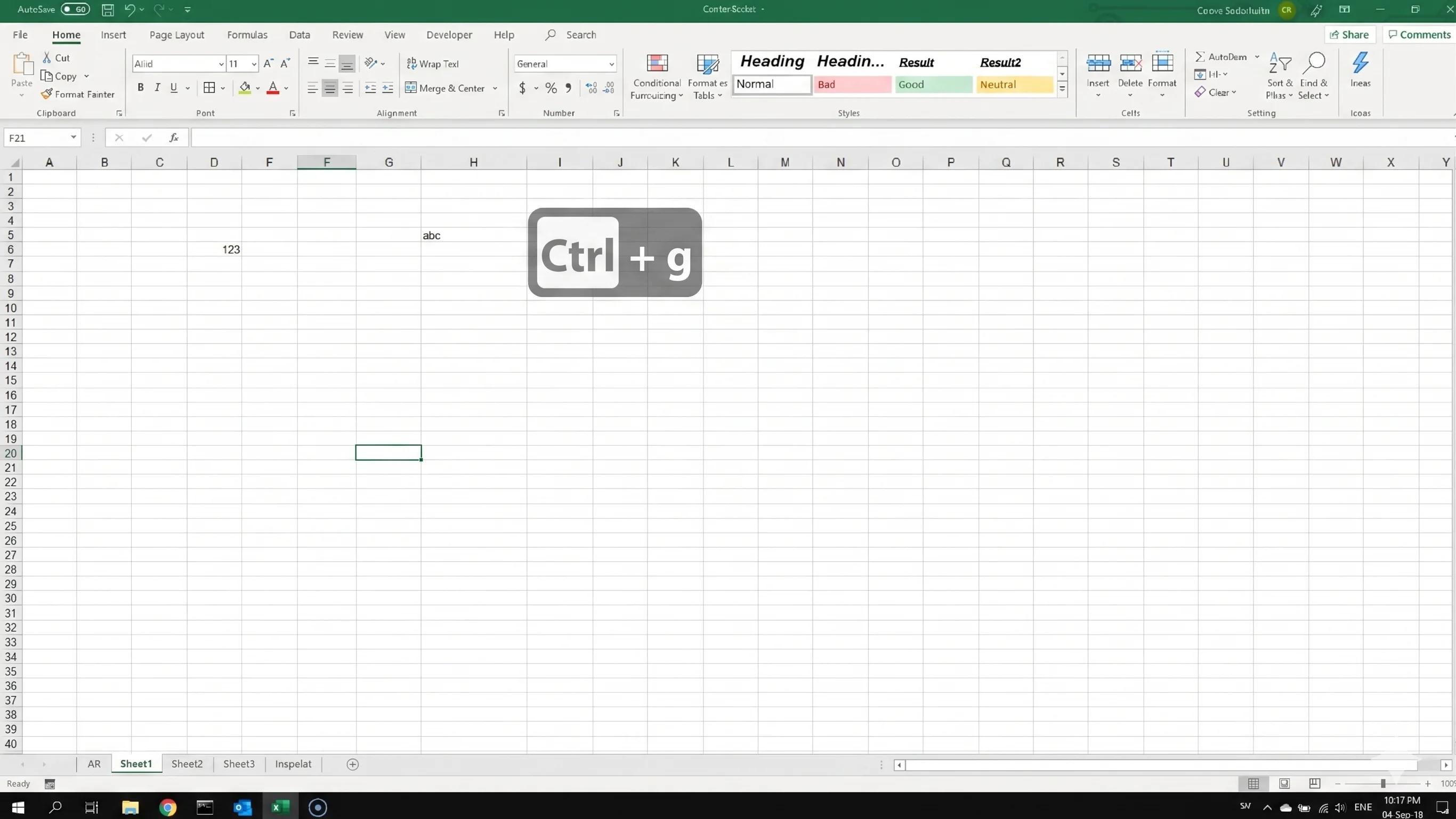
Instead of manually hunting through thousands of rows, Excel does the hard work for you.
One particularly useful trick involves selecting all blank cells in a data range.
After opening Go To Special and choosing ‘Blanks’, Excel highlights every empty cell at once and from there, users can quickly fill gaps in their data or prepare the sheet for further cleanup.



How this Excel cleanup shortcut can save hours of work
The Microsoft shortcut is especially handy when working with large spreadsheets or datasets that contain missing information.
Once blank cells are selected, users can enter a value and use Ctrl+Enter to populate every selected blank cell simultaneously rather than filling them one by one.
The same tool can also help identify formulas, constants, conditional formatting, and other elements that may need an extra look at during a cleanup session.

It’s worth saying that some spreadsheet experts caution against using the feature to automatically delete rows containing blanks, as this can sometimes remove rows that still contain important data elsewhere.
Still, for quickly finding problem areas in a spreadsheet, Ctrl+G and Go To Special remain some of Excel’s most powerful hidden tools.
And considering how many people spend hours every week manually cleaning spreadsheets, this might be one shortcut worth adding to muscle memory.
Daisy is a technology and automotive journalist covering artificial intelligence, consumer tech, Apple news, cryptocurrency, emerging technologies, and transportation innovation. Since joining the team in 2025, she has reported on everything from AI-powered startups and major iOS updates to viral car stories and the latest developments shaping transportation and the digital economy. Drawing on her background in automotive journalism and a degree in History and Journalism from Goldsmiths, University of London, Daisy specializes in breaking down complex topics into clear, engaging reporting for a global audience. Her work spans cutting-edge technology, innovative vehicles, and the people driving change across both industries. Daisy has gained first-hand access to some of the world's most talked-about technologies and innovators, including meeting Tesla's Optimus humanoid robot during its first European appearance in London. She has also discussed the future of space exploration with an astronaut, bringing unique insights and real-world perspectives to her coverage of emerging technology.