How to stop iOS 26 from draining your iPhone's battery with simple settings changes
Published on Mar 02, 2026 at 3:30 PM (UTC+4)
by Daisy Edwards
Last updated on Mar 02, 2026 at 10:04 PM (UTC+4)
Edited by
Amelia Jean Hershman-Jones
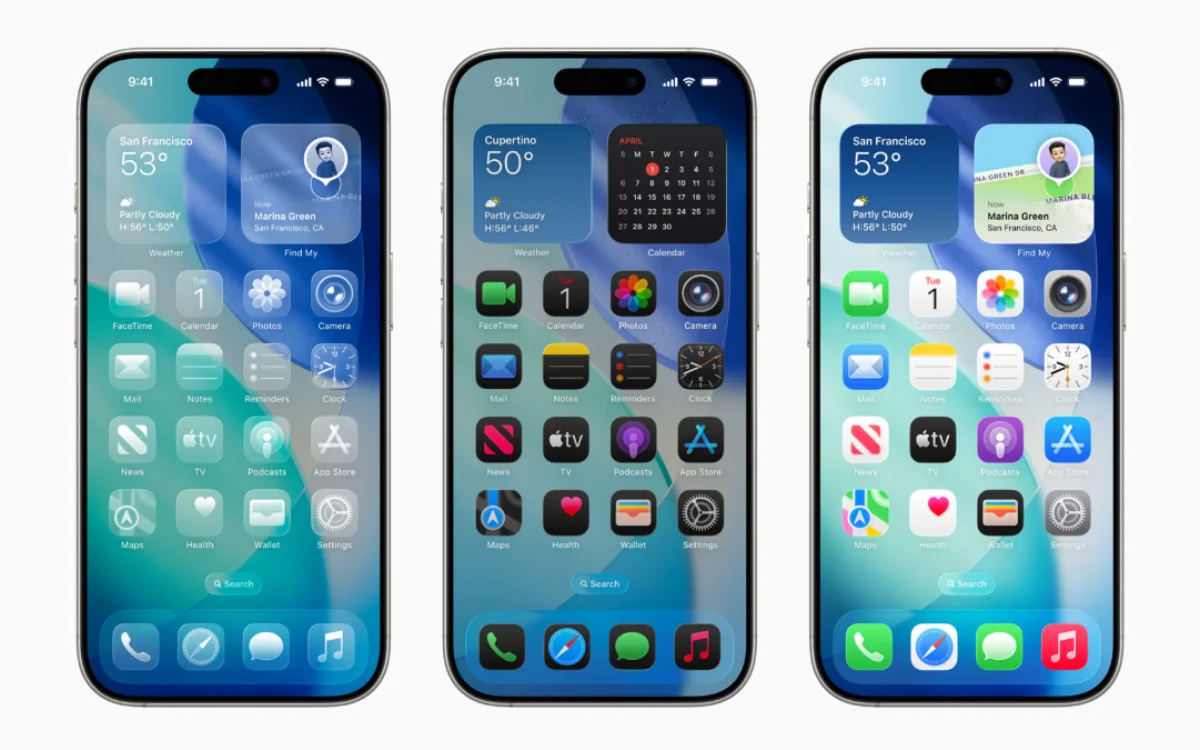

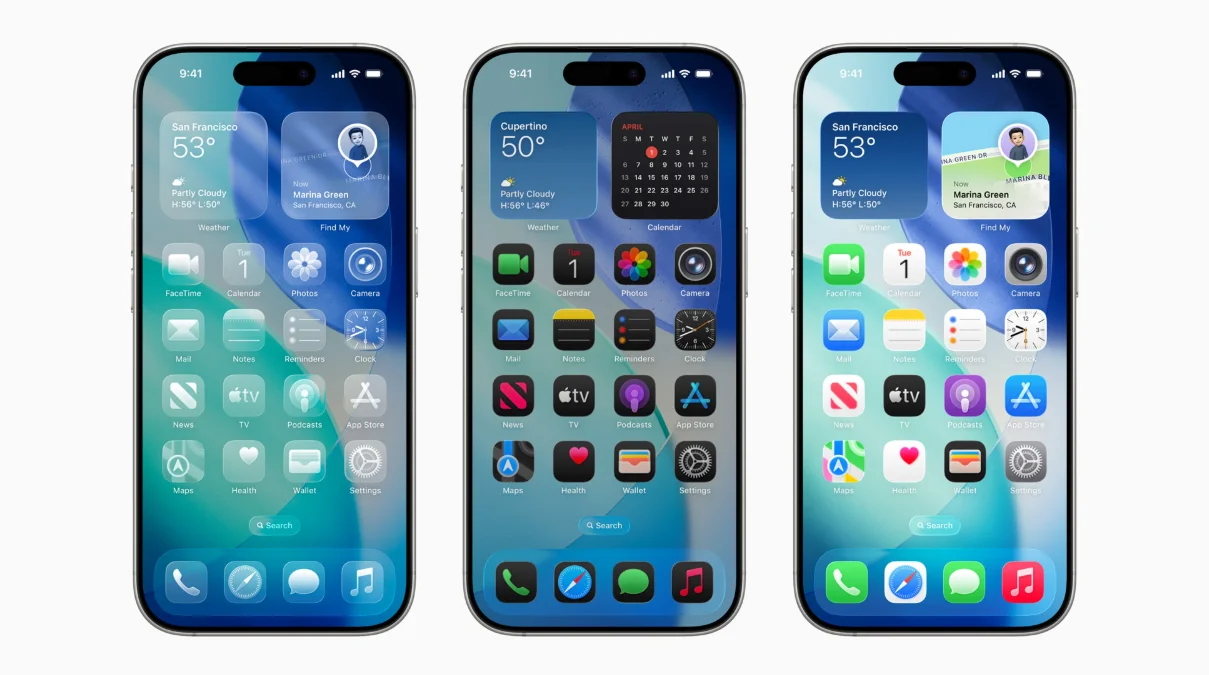
While people are loving the new iOS 26 update, it seriously drains your gadget’s battery – but there are ways to stop your new update from draining your iPhone’s battery with simple settings changes.
If your battery percentage seems to be dropping faster than ever after updating, you are definitely not imagining it.
The latest software brings new features and smarter background activity, but that can quietly eat into your daily charge.
Thankfully, a few quick tweaks can make a huge difference and get your iPhone lasting all day again.
EXPLORE SBX CARS – Supercar auctions starting soon powered by Supercar Blondie
How to stop iOS 26 from draining your iPhone’s battery
When it comes to the newest iOS 26 update, the first place to look is Background App Refresh.
Head into Settings, tap General, then Background App Refresh, and either switch it off completely or limit it to WiFi-only.
You can also scroll through the app list and disable it for anything that does not truly need to update in the background.
Next, check Location Services.
Go to Settings, Privacy and Security, then Location Services, and review which apps have access to your location.
Changing permissions to ‘While Using’ instead of ‘Always’ can significantly cut down battery drain, and you can also dive into System Services to switch off features you rarely use.
Low Power Mode is another easy win.
Found under Settings and Battery, this option reduces background activity and visual effects with one simple toggle.
Add it to your Control Center so you can activate it instantly whenever your battery starts slipping faster than you would like.
Click the star icon next to supercarblondie.com in Google Search to stay ahead of the curve on the latest and greatest supercars, hypercars, and ground-breaking technology
Do these simple settings changes
Your Battery section also shows which apps are using the most power.
If one app is constantly at the top, consider limiting notifications, reducing its background permissions, or removing it altogether if it is not essential.
A few extra tweaks can stretch things even further.
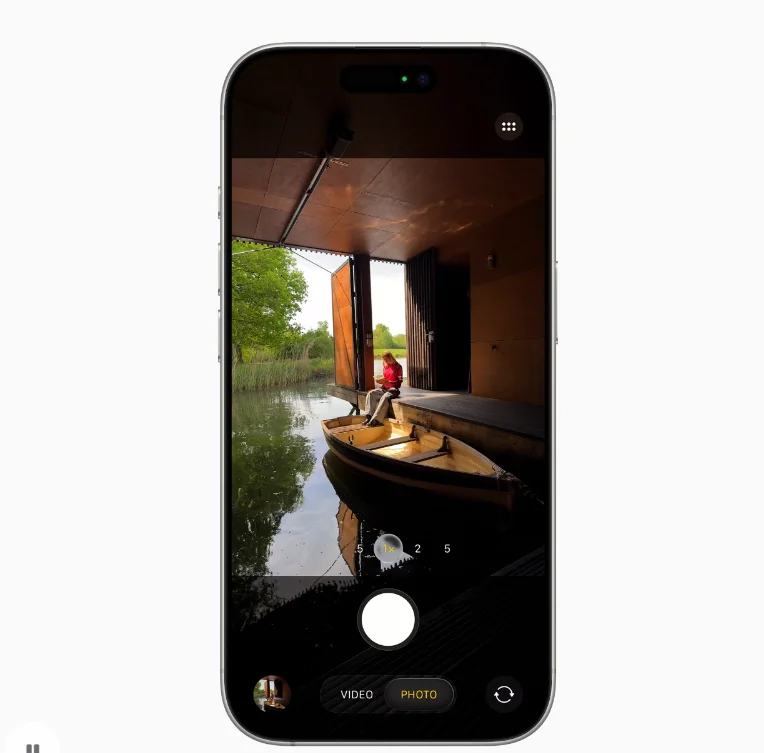
Lower your screen brightness or turn on Auto Brightness, disable push notifications for non-essential apps, and switch off Bluetooth or WiFi when you are not using them.
Dark Mode can also help on OLED models by reducing the power used for brighter pixels.
With these simple settings changes, iOS 26 can feel fresh and powerful without draining your iPhone’s battery before the day is done.
DISCOVER SBX CARS: The global premium car auction platform powered by Supercar Blondie