This 6-step Apple Shortcuts automation will take a picture of thief and send location if someone steals your iPhone and charges it
Published on Oct 01, 2026 at 6:01 AM (UTC-4)
by Daisy Edwards
Last updated on Oct 13, 2026 at 4:01 AM (UTC-4)
Edited by
Mason Jones

Your iPhone is a gadget that can do a lot more than make calls, send messages, and take photos, and Apple Shortcuts has some surprisingly useful tricks hiding inside it if you come across a phone thief.
One automation can be set up to react when the phone is connected to a charger and then gather information that could help you work out where it has ended up.
It can reconnect the phone to a network, grab its current location, take a photo with the front-facing camera and send the information to an email address.
And it takes about five minutes to set up.
First, set up the charger automation
Open the Shortcuts app and head to the Automation tab before tapping the plus sign in the top-right corner.
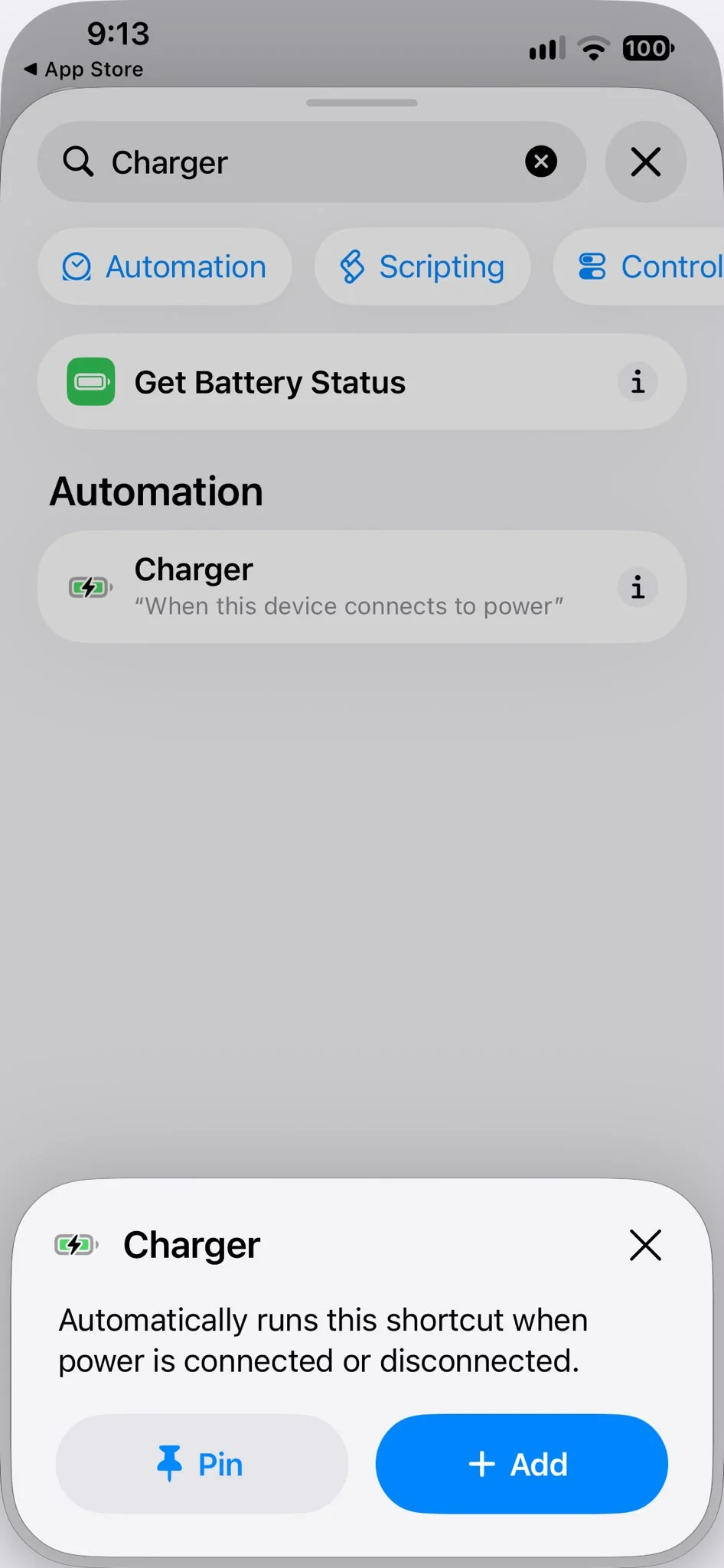
Scroll down until you find Charger and select it as the trigger, choose ‘Run Immediately’ and make sure ‘Run Notifications’ is switched on, then move on to creating a new shortcut.
Everything below goes into that shortcut in this order.
1. Make sure airplane mode is switched off
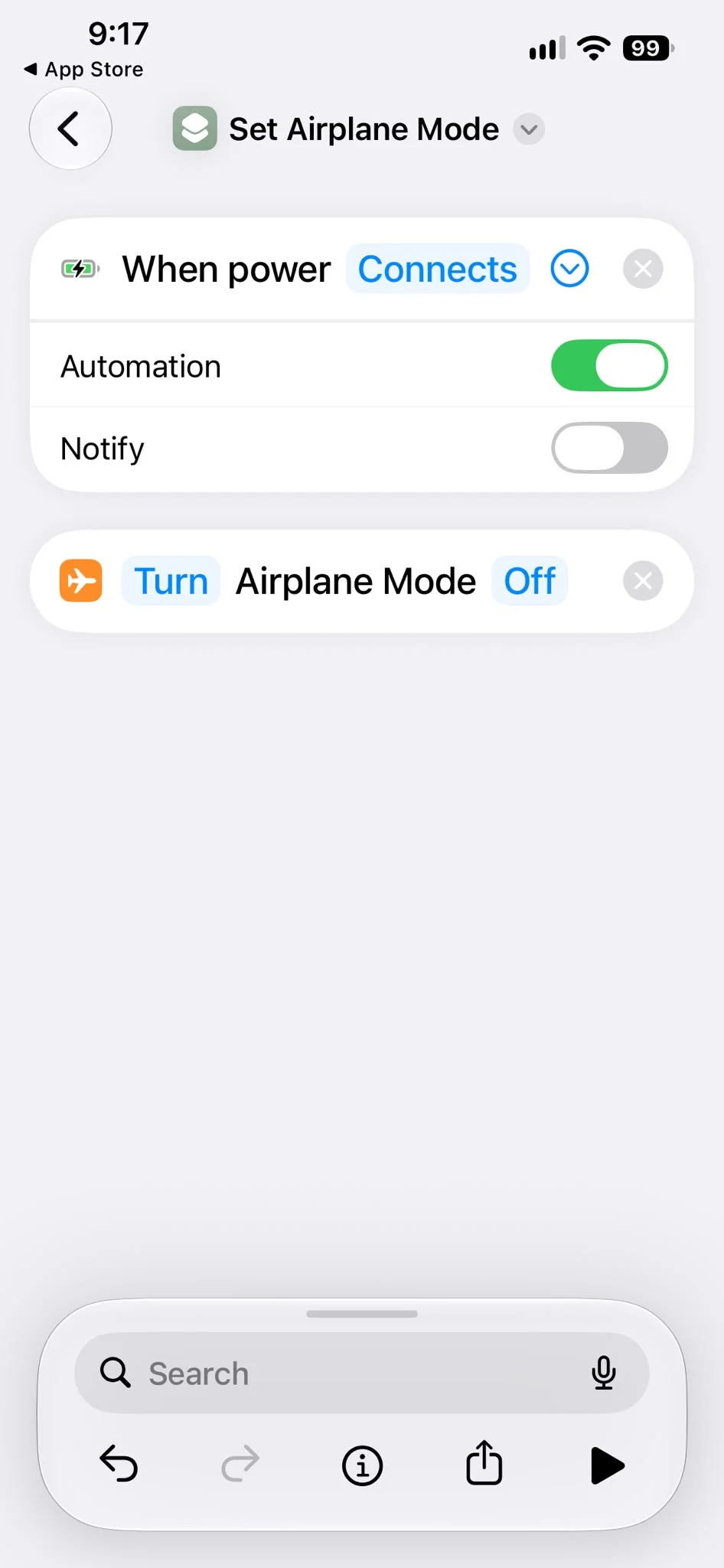
The first action is a slightly hidden one, so searching for ‘airplane mode‘ on its own won’t necessarily bring it up.
Tap ‘Add Action’, then go to Scripting > Device and select ‘Set Airplane Mode’, then set it to ‘Off’.
The idea is to make sure the phone has a chance to reconnect to a network if airplane mode has been switched on.
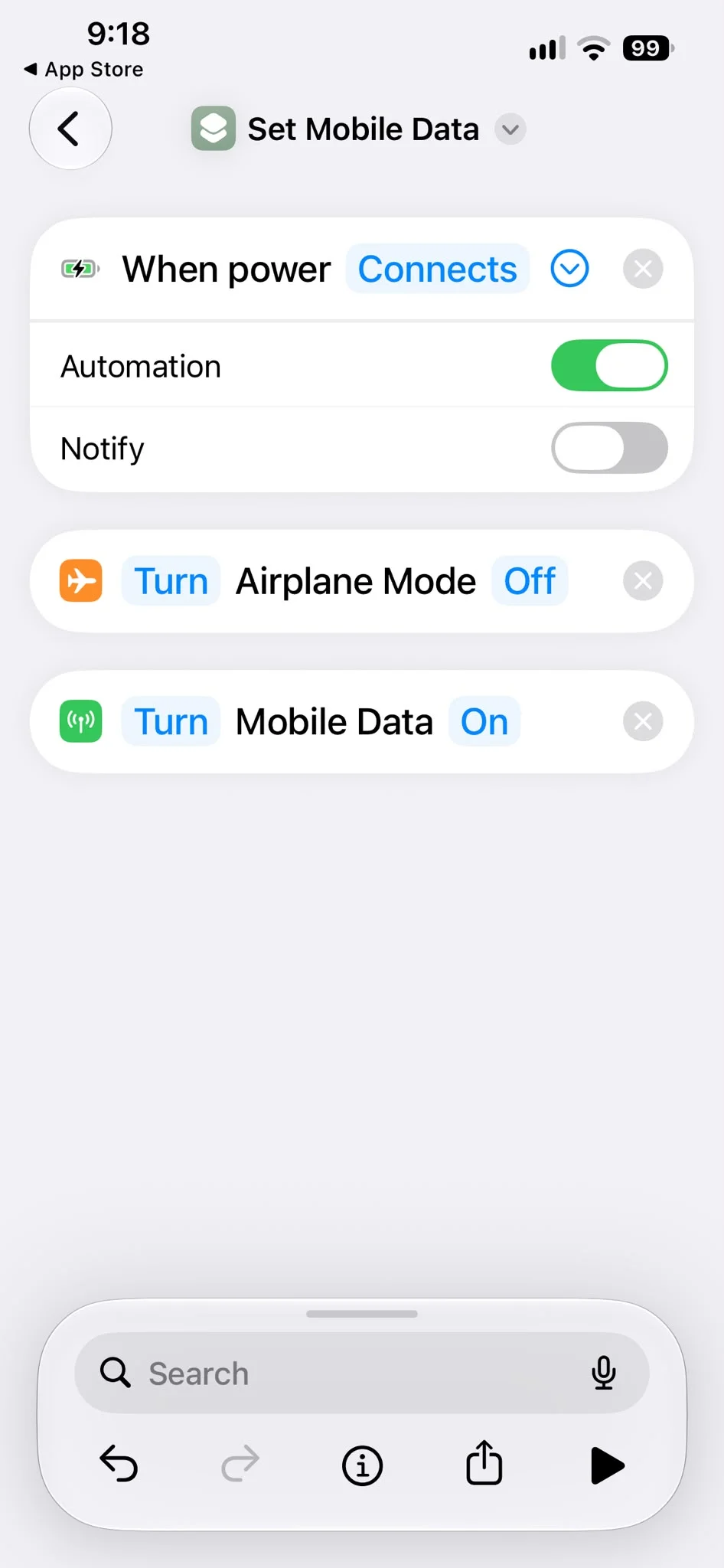
2. Turn mobile data on wherever your iPhone is
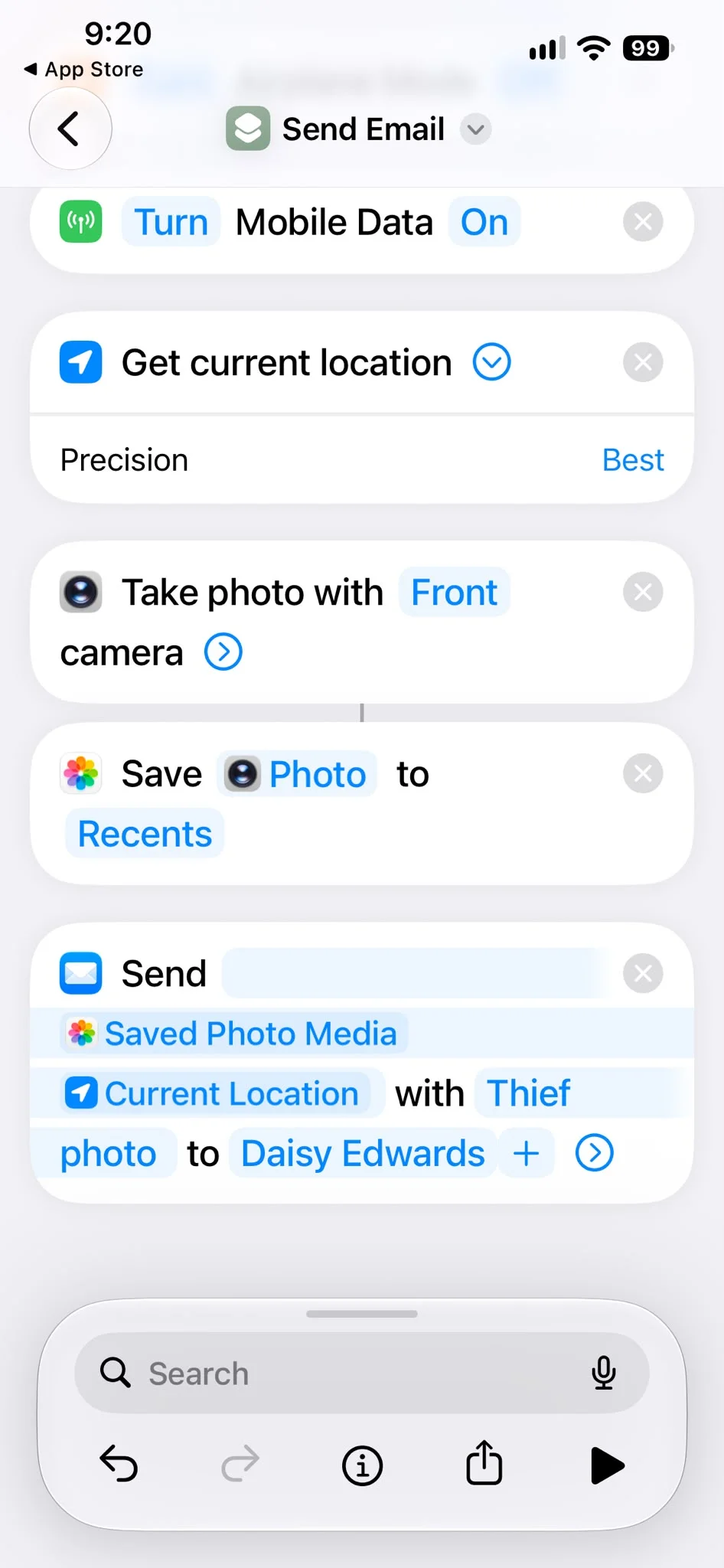
Next, add the Mobile Data action and set it to On.
This gives the phone another way to connect to the internet, which is important because the automation needs a connection if it is going to send anything to you.
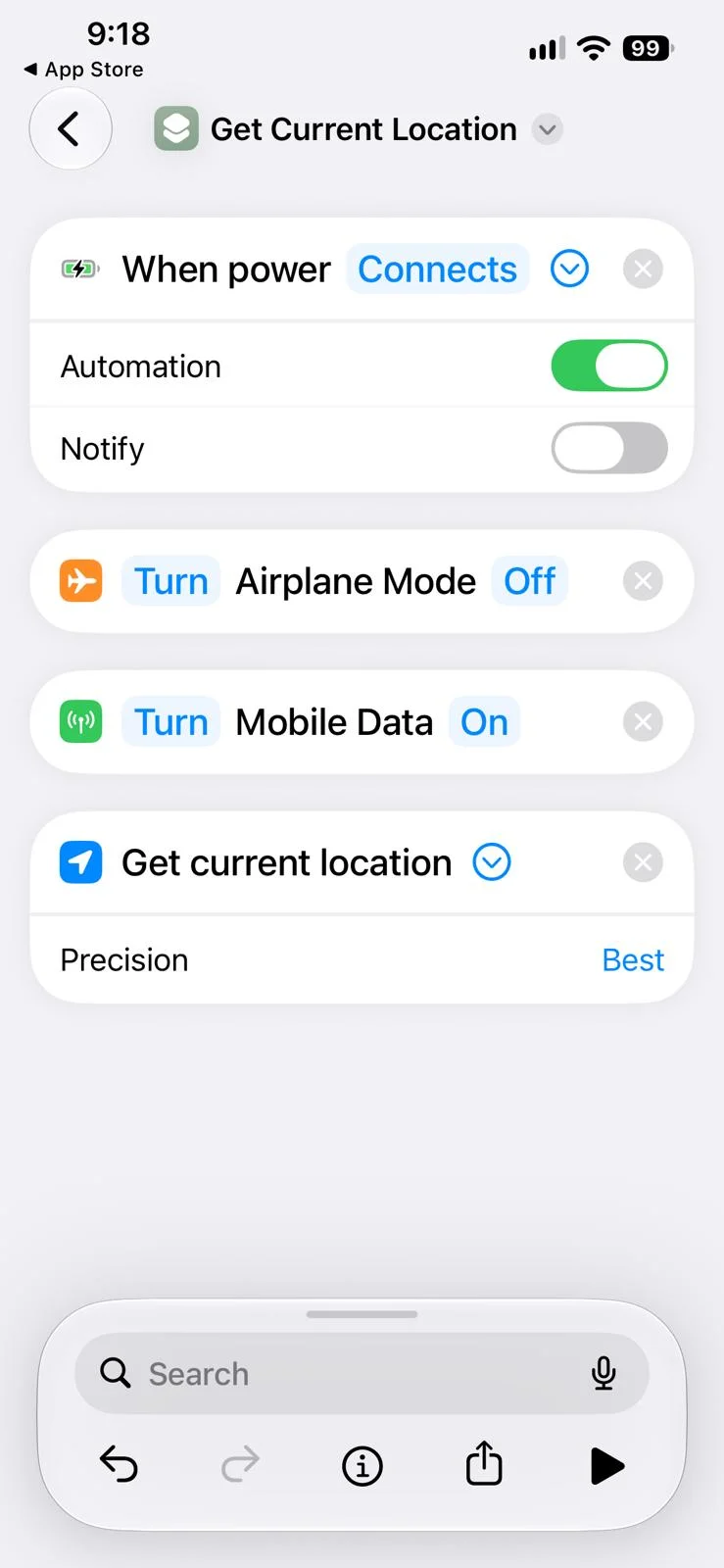
3. Get the current location of your stolen iPhone
Now add ‘Get Current Location’ and select ‘Best’ for the location setting.
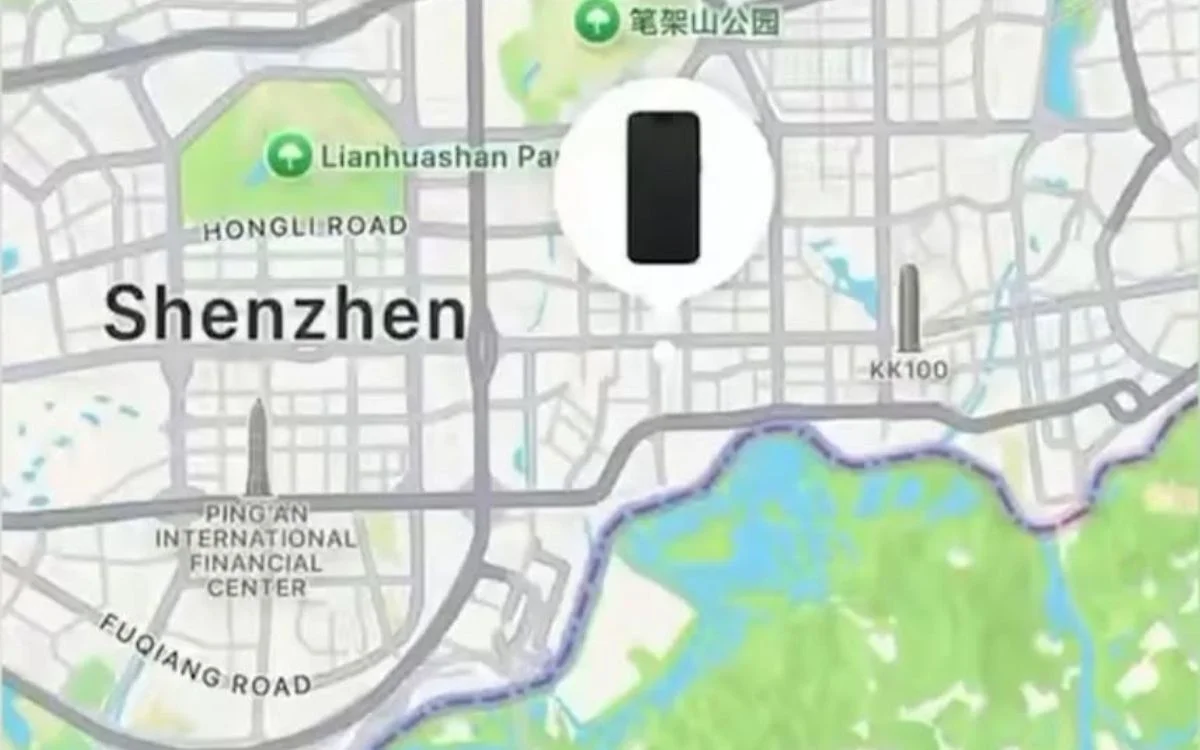
This gives the shortcut the phone’s current location, which can then be included with the information sent to the owner.
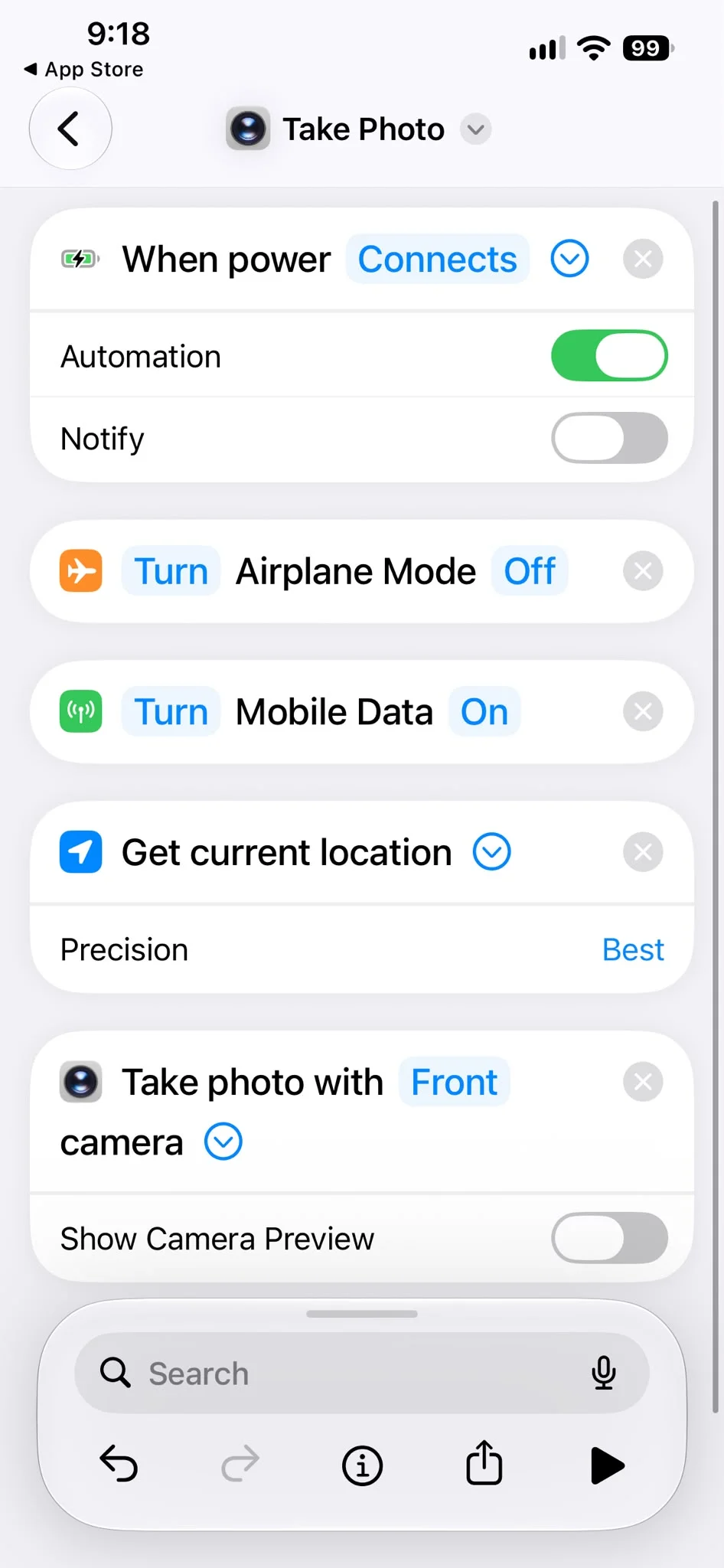
4. Take a photo
Add the ‘Take Photo’ action and select the front-facing camera.
Then switch off ‘Show Preview’, which means the camera action can happen without leaving a camera preview sitting on the screen.
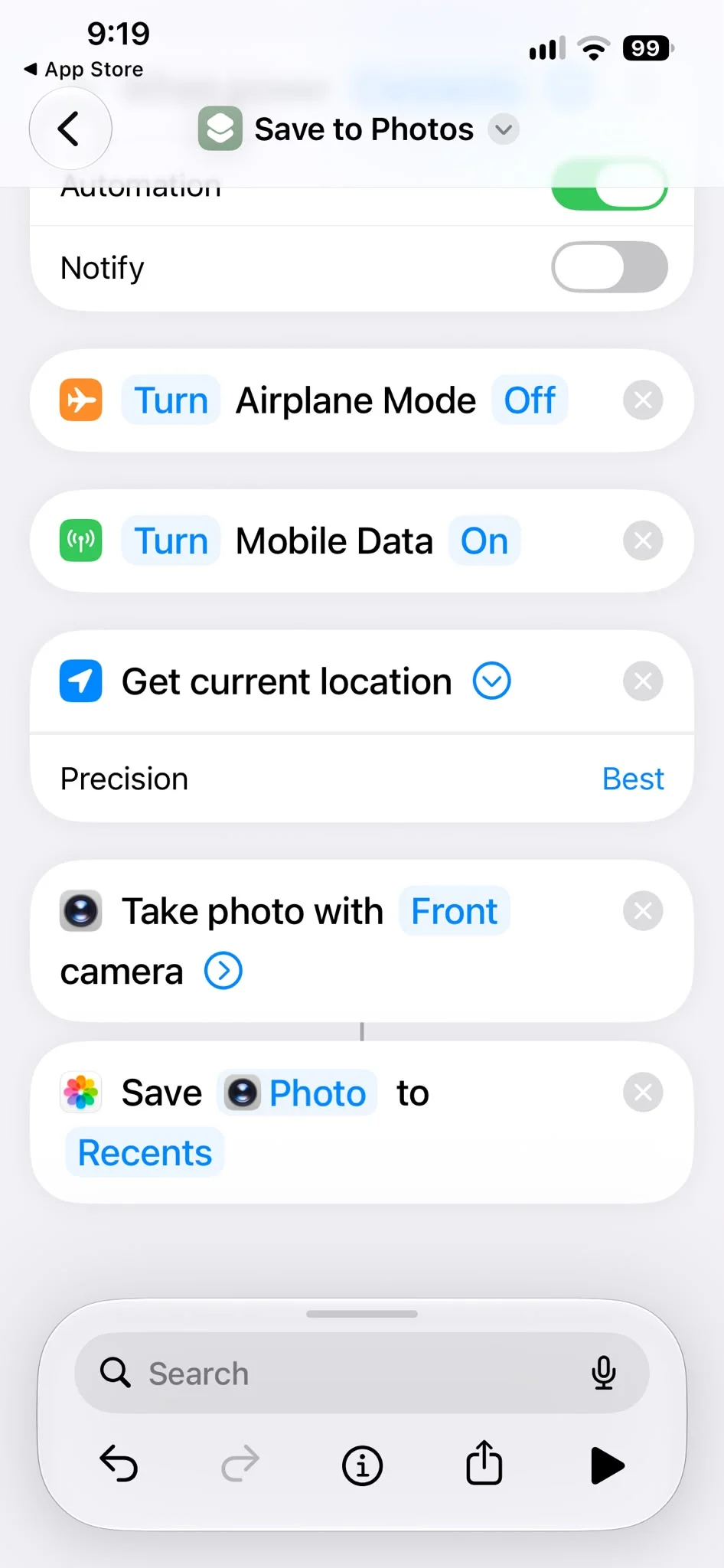
5. Save the photo to your iPhone library
Next, add ‘Save to Photo Album’.
This gives you a copy of the photograph on the iPhone’s Photos library, although whether it reaches your other devices will depend on how your Photos and iCloud settings are configured.
6. Send everything by email
Finally, add the ‘Send Email’ action.
Enter the email address you want the information sent to and add your preferred subject.
Open the action’s options and switch off ‘Show Preview’ and ‘Show Compose Sheet’ if those options are available on your version of iOS.
That’s the whole shortcut.
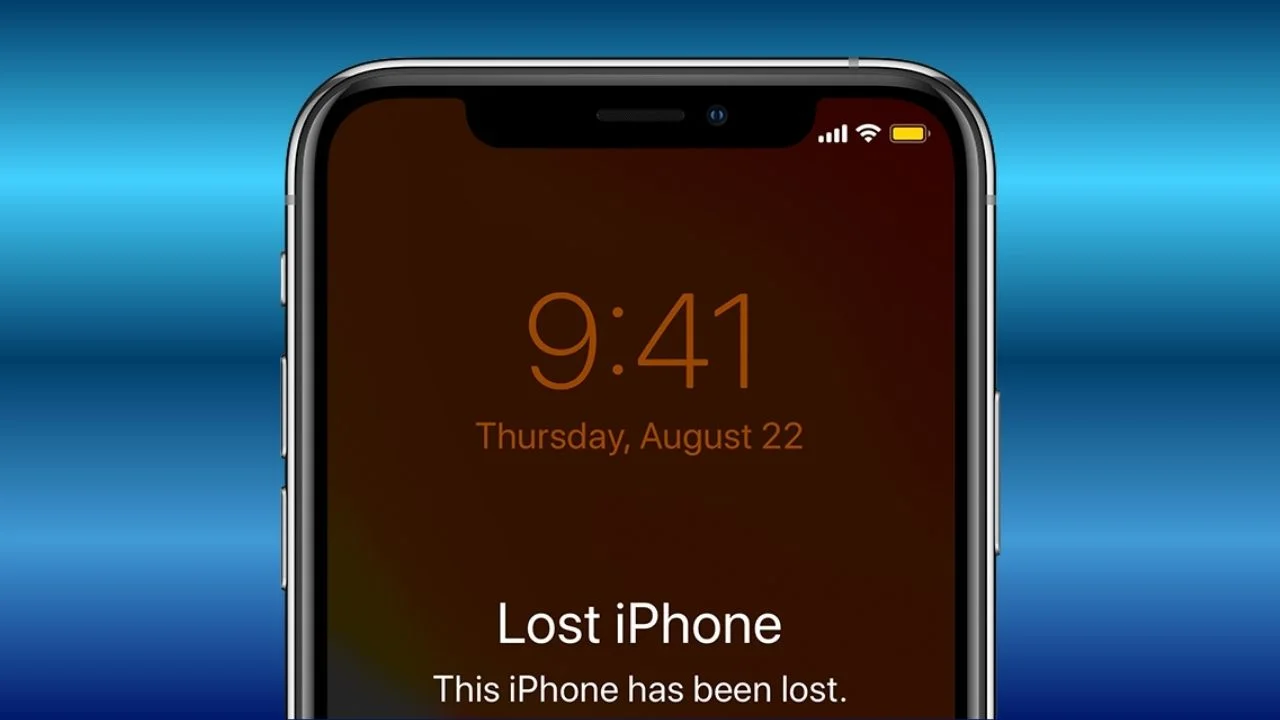
What happens when the iPhone is charged?
Once everything is configured, plugging the iPhone into a charger triggers the automation.
The shortcut attempts to restore connectivity, gets the phone’s current location, takes a front-camera photo of the thief and then sends the resulting information by email.
It’s a clever example of how much Apple and its Shortcuts app can automate without downloading another app, although there are some important limitations.
The phone needs to be able to run the automation and communicate with the internet, and this shouldn’t be considered a replacement for Apple’s Find My feature.
There are also privacy and legal considerations around taking photographs of people without their knowledge, which can vary depending on where you live, even if they are a thief.
Still, if you’re experimenting with it on your own iPhone, don’t be surprised if the first photo you receive is an absolutely terrible selfie, and not a photo of a dastardly iPhone thief.
When I first tested this automation, I received the worst photo of my face I’d ever seen, and sadly the Supercar Blondie readers will never be lucky enough to see it.
Good luck, crimestoppers.
Daisy is a technology and automotive journalist covering artificial intelligence, consumer tech, Apple news, cryptocurrency, emerging technologies, and transportation innovation. Since joining the team in 2025, she has reported on everything from AI-powered startups and major iOS updates to viral car stories and the latest developments shaping transportation and the digital economy. Drawing on her background in automotive journalism and a degree in History and Journalism from Goldsmiths, University of London, Daisy specializes in breaking down complex topics into clear, engaging reporting for a global audience. Her work spans cutting-edge technology, innovative vehicles, and the people driving change across both industries. Daisy has gained first-hand access to some of the world's most talked-about technologies and innovators, including meeting Tesla's Optimus humanoid robot during its first European appearance in London. She has also discussed the future of space exploration with an astronaut, bringing unique insights and real-world perspectives to her coverage of emerging technology.