This is how to set your iPhone ringtone as whatever song or sound you like
Published on Oct 05, 2026 at 5:59 AM (UTC-4)
by Daisy Edwards
Last updated on Oct 05, 2026 at 5:59 AM (UTC-4)
Edited by
Mason Jones


If you’ve ever wished your iPhone ringtone could be something a little more exciting than Apple’s usual collection of ringtones, there’s some good news for you.
You can now turn your own audio files into custom ringtones without having to jump through a million hoops.
That means your favorite song, sound effect or hilarious audio clip can become the thing everyone hears when someone calls you.
And the best part is that you can do it directly from your iPhone.
You don’t have to stick with Apple’s ringtones
Apple has traditionally made customizing an iPhone ringtone feel unnecessarily complicated, particularly if you wanted to use something that wasn’t already sitting in its library.
It’s harkening back to the gadgets of the early 2000s, when having a perfectly chosen ringtone for every person on your contacts list felt like the law, but as smartphones have gotten more complicated, so has this iconic ritual.
But newer versions of iOS have made things considerably easier for those needing a nostalgia boost.
As long as you have the audio file you want to use, you can turn it into the sound you hear when someone you love (or hate) calls in just a few taps.
There are a couple of things to keep in mind first: the audio needs to be saved as either an MP3 or M4A file, and it needs to be no longer than 30 seconds.
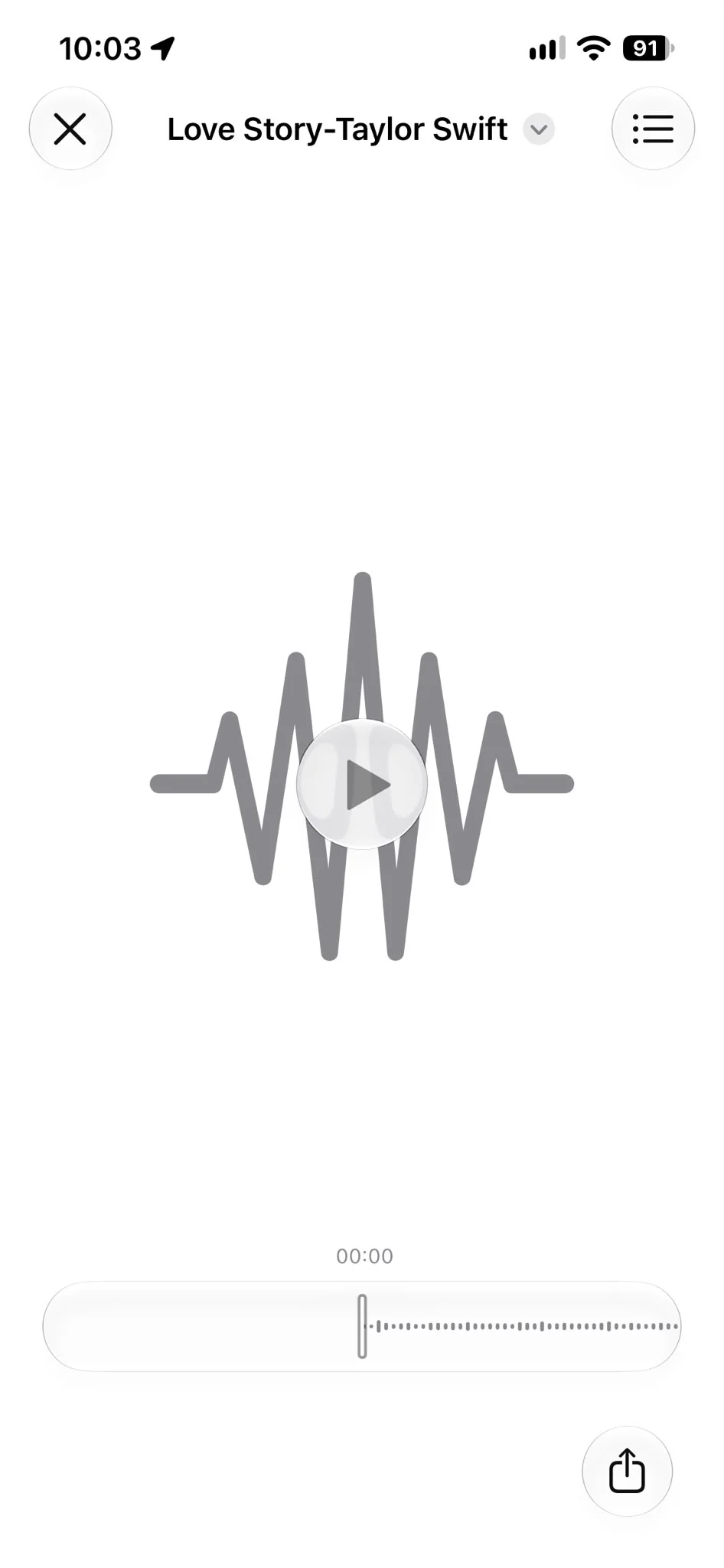
So if you’ve found the perfect 45-second section of a song, you’ll need to trim it down first.
Once you’ve got your 30-second-or-less audio file ready, save it to the Files app on your iPhone.
And this is where things get very easy.
Related
Here’s how to make it your iPhone ringtone
Open the Files app and find the audio file you want to use.
Tap and hold the file, then select Share from the menu that appears.
You should now see an option called ‘Use as Ringtone’.
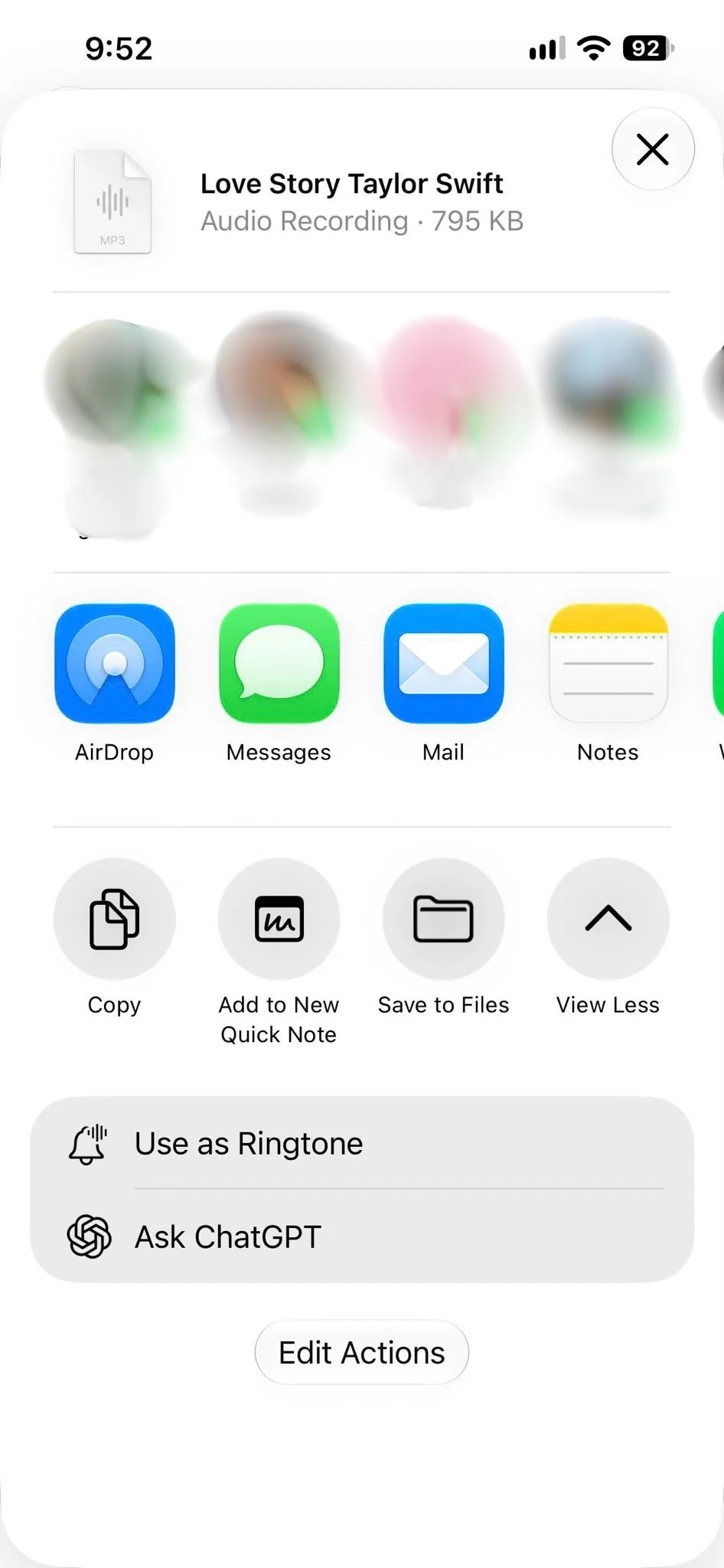
Tap that and iOS will automatically add the audio file to your ringtone library, and that’s it.
You can then head to Settings, followed by Sounds & Haptics, to find and select your new ringtone.
So, instead of hearing the same default sound every time someone calls, you could have a favorite song, a sound effect or basically any short audio clip you fancy.
The important thing is that you don’t need any complicated software or a computer to do it.
You just need to have the audio file saved on your iPhone and make sure it meets Apple’s requirements.
You can give different people different sounds
The customization doesn’t stop at choosing one sound for everyone.
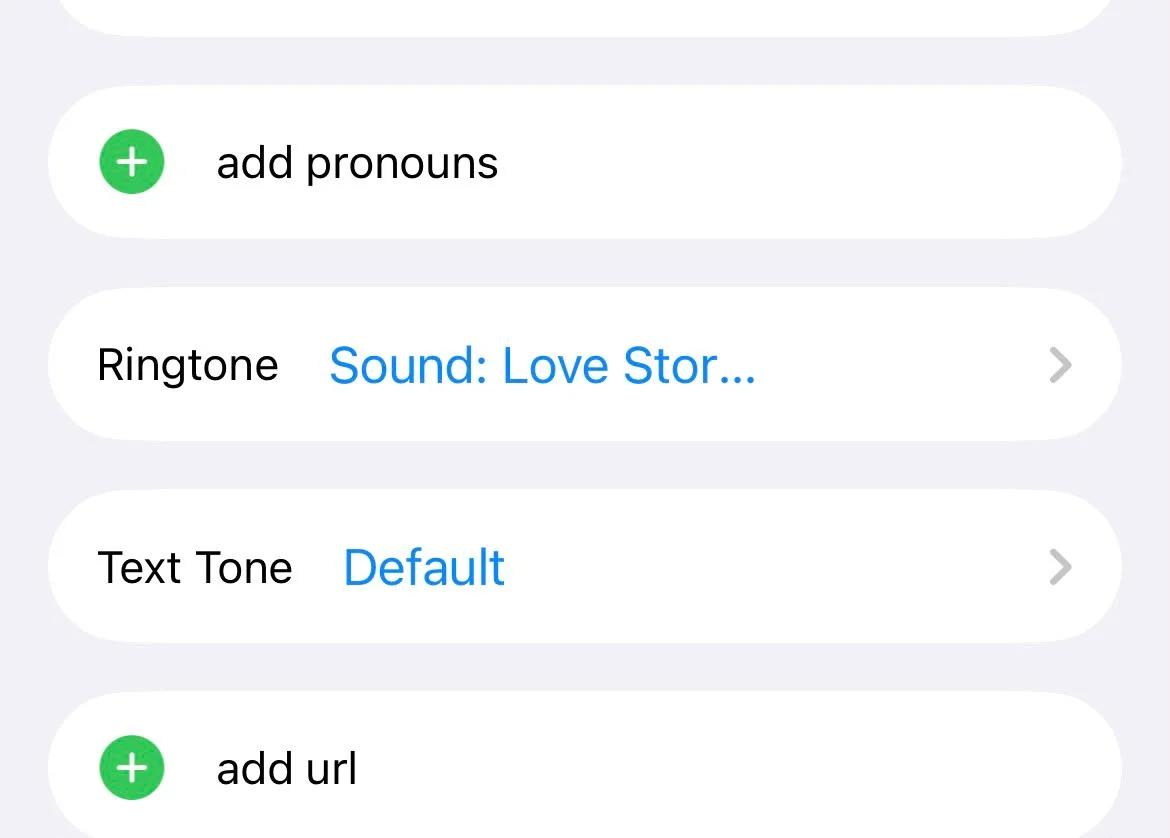
You can also assign specific ringtones to individual contacts, meaning you can know who’s calling without even looking at your phone.
To do this, open the Contacts app and select the person you want to customize.
Tap Edit, then look for the Ringtone option and choose the sound you want to associate with that contact.
You could give your partner Love Story by Taylor Swift, There’s your Trouble by The Chicks for your younger sister and maybe Dolly Parton’s 9 to 5 for your colleagues, but then you’d just be copying me.
It also means you can get creative with sound effects or short clips rather than relying entirely on Apple’s standard selection so if you’re a meme lover, it’s your lucky day.
Considering how much time we spend staring at our iPhones, being able to make something as simple as a ringtone feel more like a simpler, more personal era of phone usage.
And if you’ve been putting up with Apple’s default sounds for years, you now have very little excuse not to change it.
That’s right, it’s time to ditch ‘Radial’.
Now, who should I assign Thunderstruck to?
Daisy is a technology and automotive journalist covering artificial intelligence, consumer tech, Apple news, cryptocurrency, emerging technologies, and transportation innovation. Since joining the team in 2025, she has reported on everything from AI-powered startups and major iOS updates to viral car stories and the latest developments shaping transportation and the digital economy. Drawing on her background in automotive journalism and a degree in History and Journalism from Goldsmiths, University of London, Daisy specializes in breaking down complex topics into clear, engaging reporting for a global audience. Her work spans cutting-edge technology, innovative vehicles, and the people driving change across both industries. Daisy has gained first-hand access to some of the world's most talked-about technologies and innovators, including meeting Tesla's Optimus humanoid robot during its first European appearance in London. She has also discussed the future of space exploration with an astronaut, bringing unique insights and real-world perspectives to her coverage of emerging technology.